
The contents of this article provide steps on how to add new Kit Pieces while troubleshooting any issues associated with them failing to appear in BFD3's mixer window.
TABLE OF CONTENTS
- How to add a new kit piece
- How to create an empty kit piece
- I can't see the Kit Piece in my Mixer window - What should I do?
How to add a new kit piece
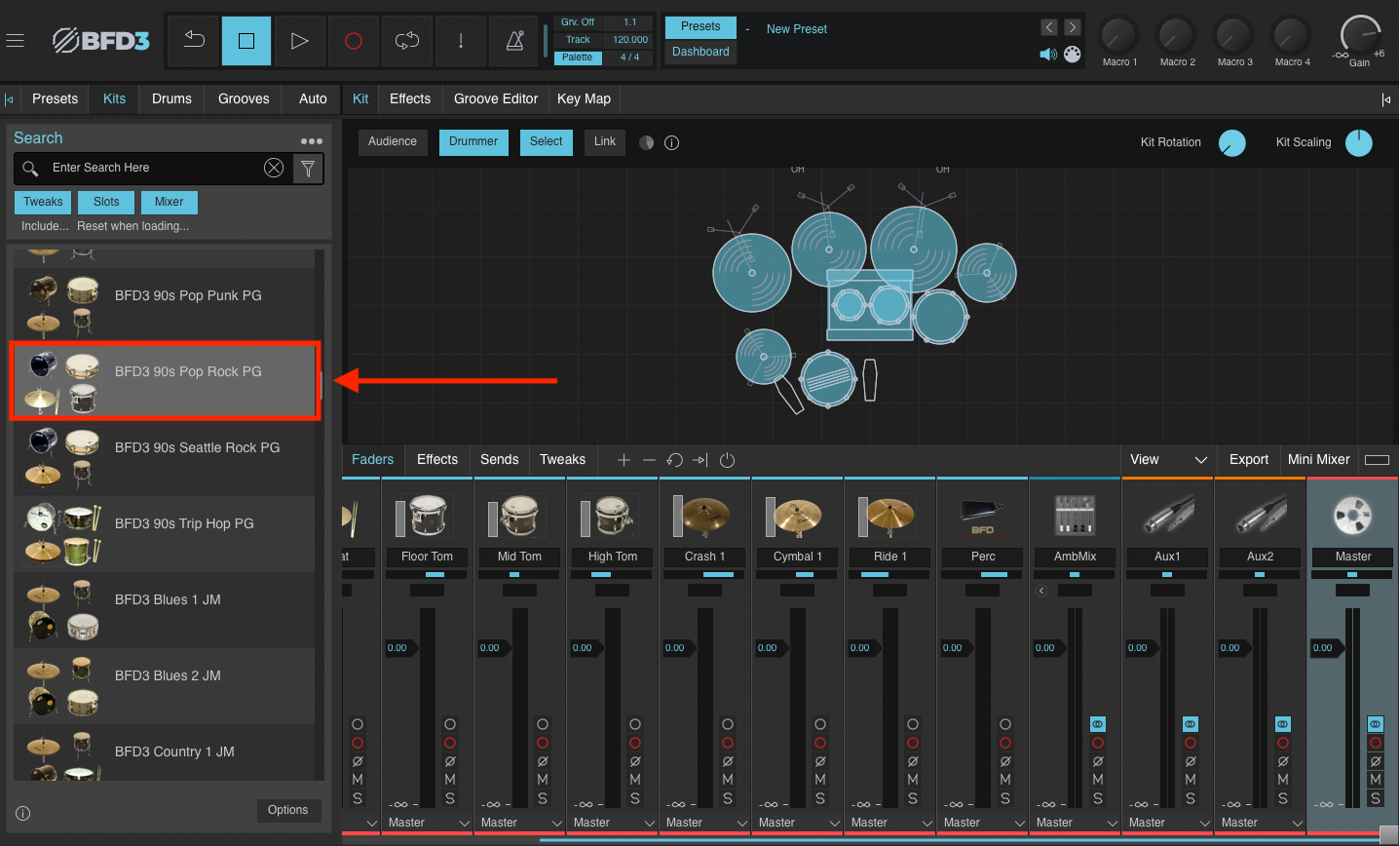
- Load any kit from the BFD3 Core Library
 Navigate to 'Drums', filter by any kit or library of your choice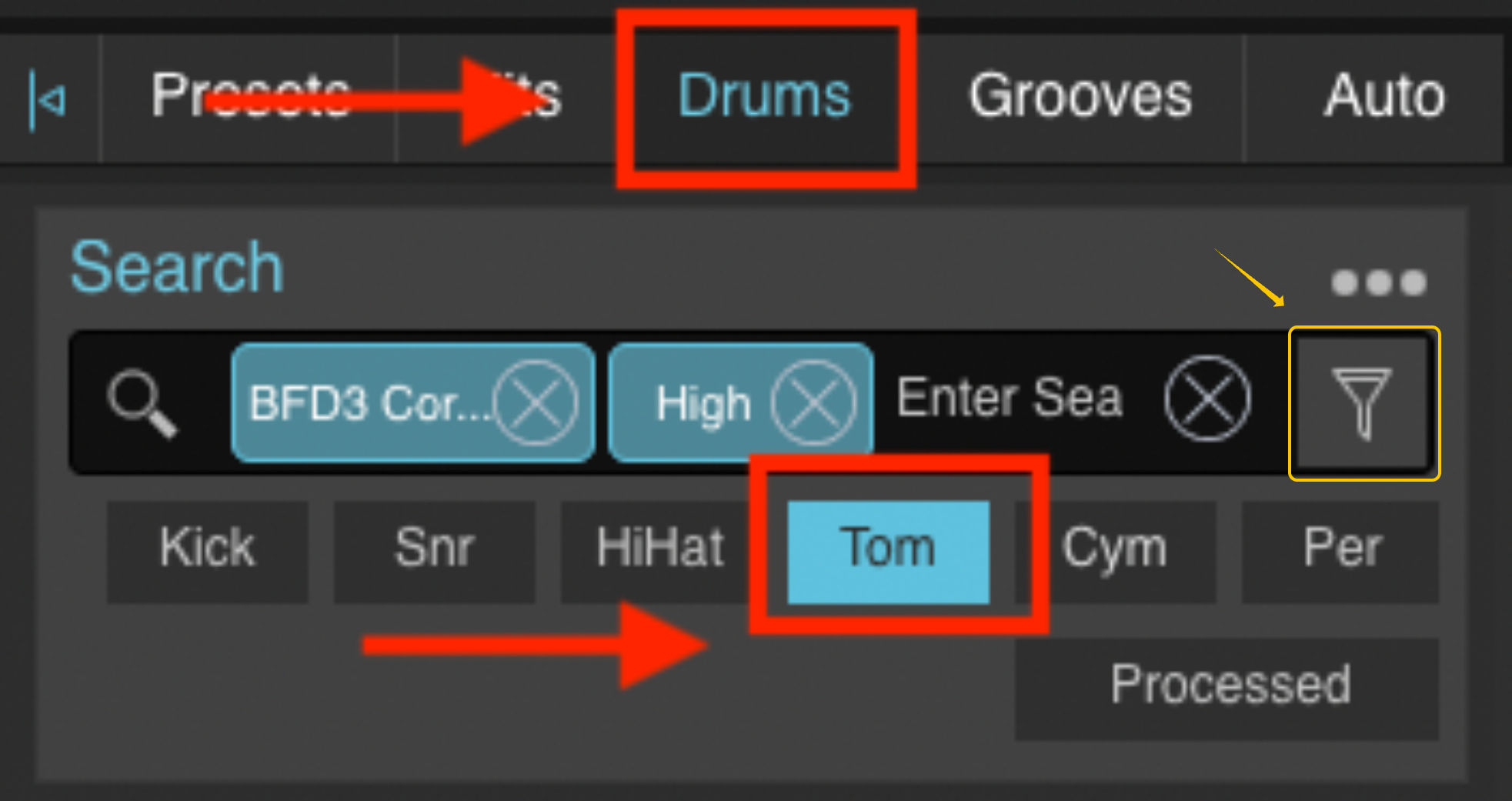
- Locate a kit piece and drag/drop it over to the kit
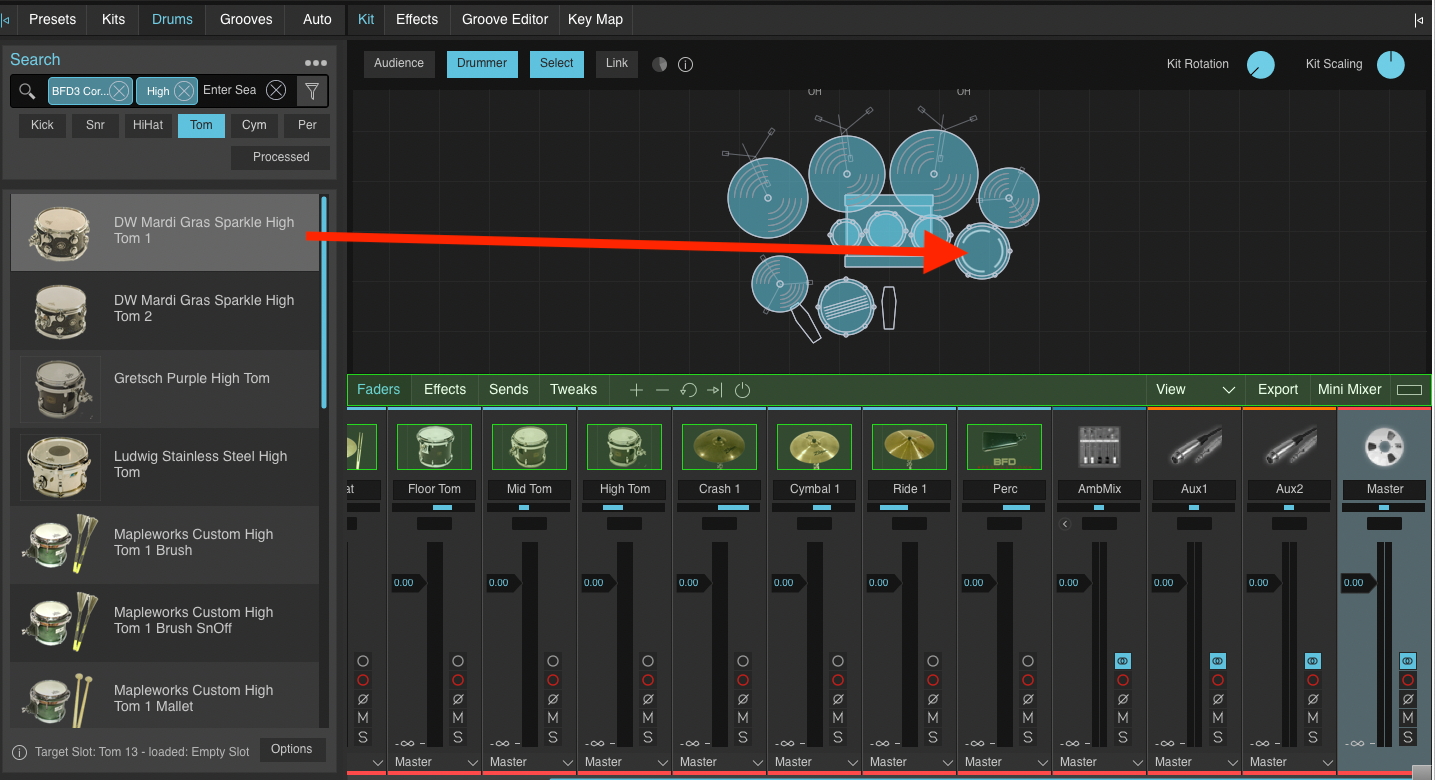
- You will receive a message prompting you to add a new Slot:
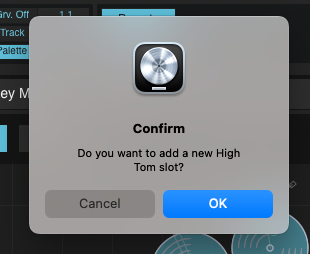
- Click 'OK' to add it
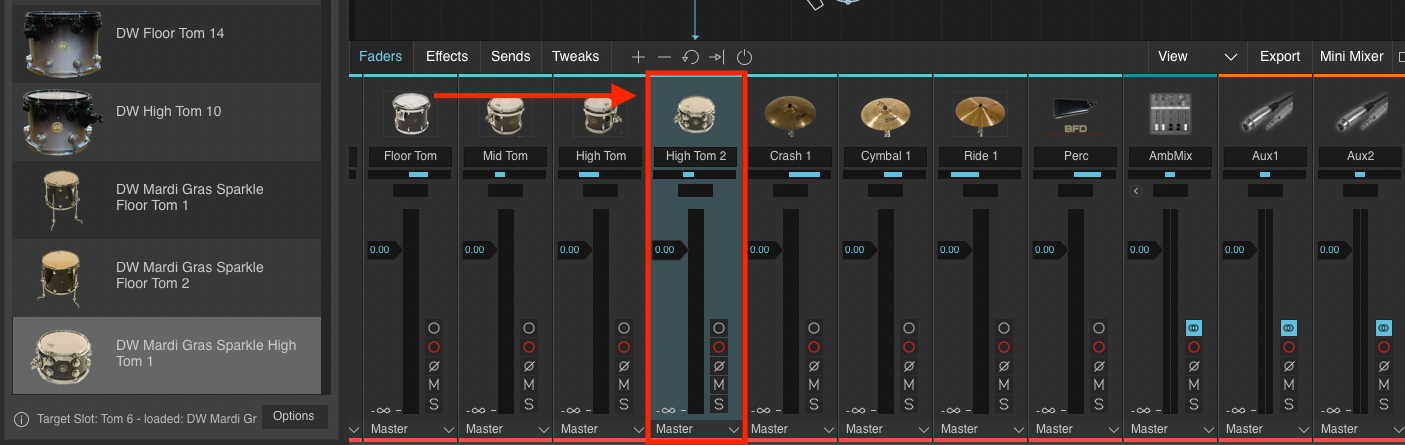
- The new Kit piece is seen in both the kit view and in the channel mixer:
How to create an empty kit piece
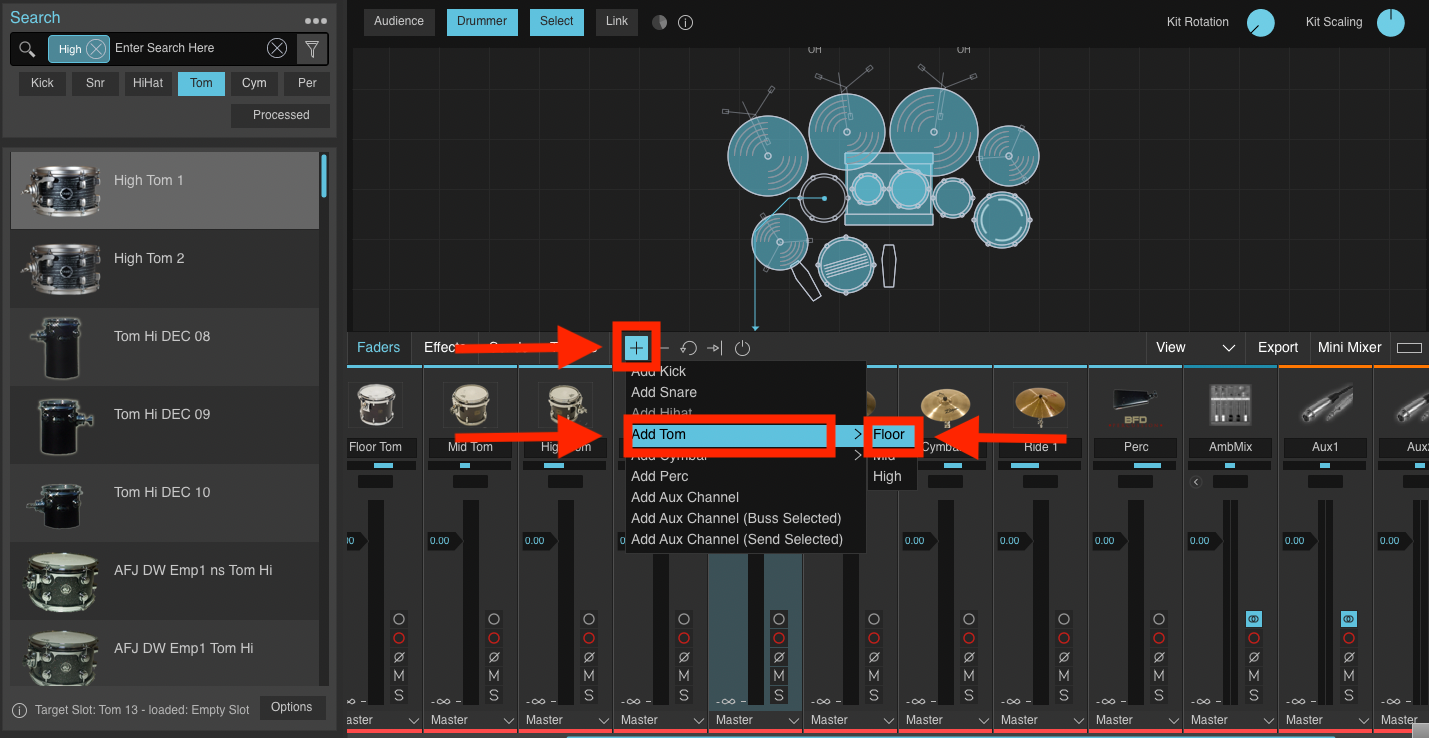
- Click the + Icon seen in the Kit View mixer
- Hover over 'Add Tom'
- Select 'Floor'
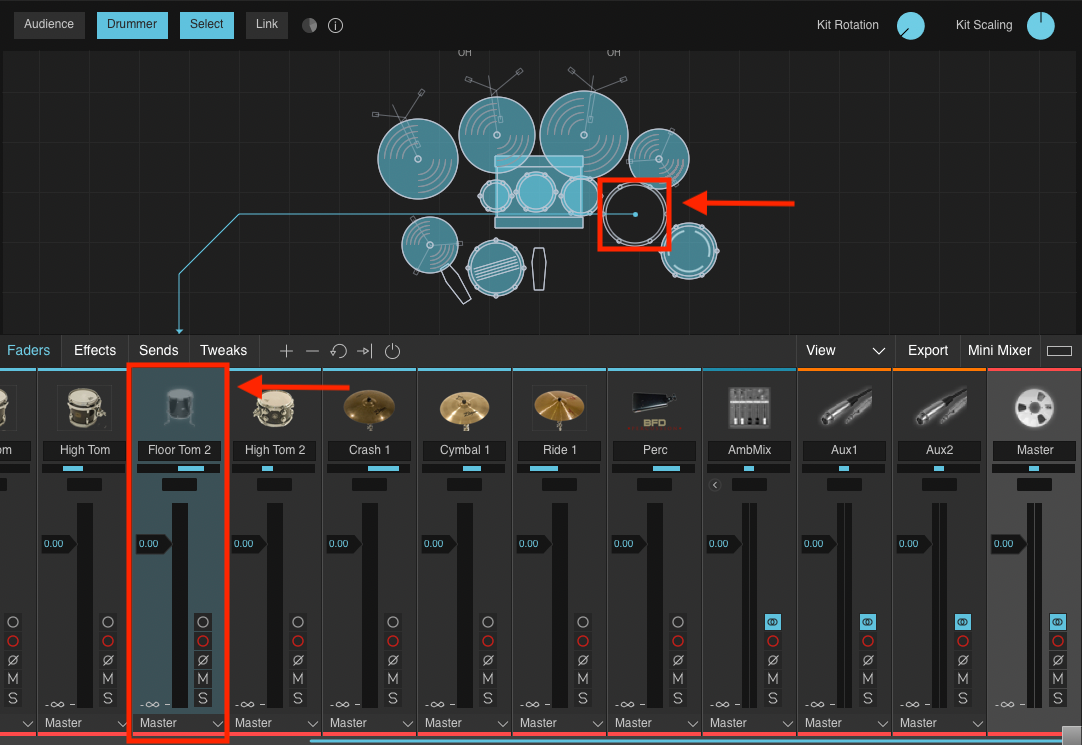
- A blank Kit Piece is created & a blank channel mixer is seen
- Right-click on the empty slot to assign the piece of your choice
I can't see the Kit Piece in my Mixer window - What should I do?
Some Windows users may find that their build of BFD 3.5 is failing to display new Drum/Kit Pieces in the mixer window. This implies that the installation of BFD 3.5 may be corrupt.
To solve this problem, see the steps below:
Note -these steps will not affect your Core Library or Expansion content. If your core library is not stored in your documents by default, you will need to manually add it post-reinstallation.
Steps for Windows
- Run the dedicated uninstaller - BFD3 Uninstaller.exe via the folder below:
C:\Program Files\BFD Drums\BFD3 - Once uninstalled, navigate to:
C:\Users\[YourUsername]\AppData\Roaming\ - Delete the entire folder 'BFD Drums'
- Empty the recycling bin, and restart your computer
- Re-download BFD3 and Reinstall BFD3 via the inMusic Software Center

Steps for macOS
- Close BFD 3 standalone or any software using BFD3
- Run the dedicated BFD3 Uninstaller in Finder:
Macintosh HD/Library/Application Support/BFD Drums/BFD3- Users who have updated from BFD 3.4 will find the installer located in the location below:
Macintosh HD/Library/Application Support/BFD Drums/BFDInstallSystem/BFD3
- Users who have updated from BFD 3.4 will find the installer located in the location below:
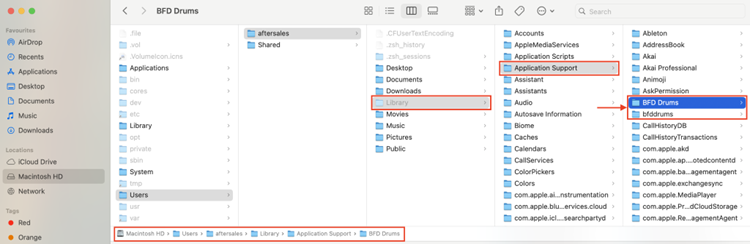
- Navigate to the user application support file:
Macintosh HD/User/username/Library/Application Support/BFD Drums
To access the hidden library in Finder - Go to Macintosh HD/User/username and press Command + Shift + . (Period) - Delete the following folders:
- BFD Drums
- bfddrums - Only present for updated BFD 3.4 users
- Empty the trash, and restart the Mac
- Re-download and reinstall BFD 3 via the inMusic Software Center
Manually loading Core library content
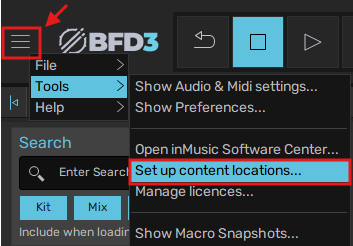
- Click the 3 lines on the top left of the window > Tools > Set up content locations...
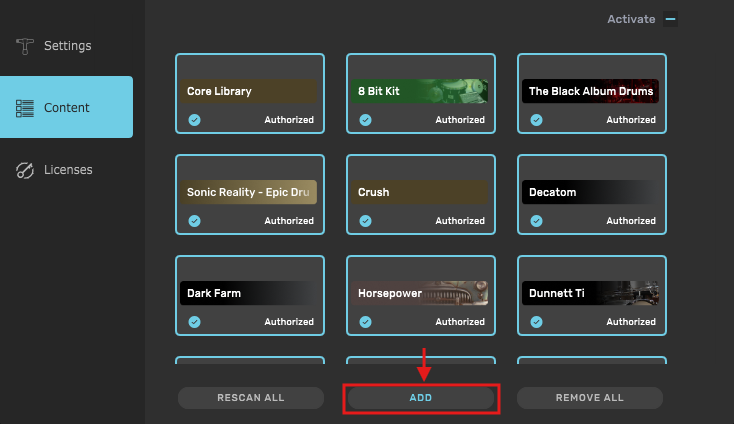
- Click 'ADD'
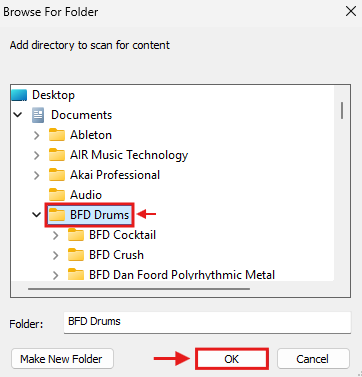
- Select your location and hit 'OK'
- Allow a few minutes for BFD 3.5 to rescan the content path

- Content successfully added! Click 'DONE'
If you continue to experience issues, please contact our support team for friendly assistance.