

TABLE OF CONTENTS
If your AIR Music Technology plugins aren’t showing up in GarageBand, follow these steps to resolve the issue. These steps will help you ensure your plugins are correctly installed and configured.
Check macOS Compatibility
Make sure that your macOS version is compatible with the version of GarageBand and AIR plugins you are using. You can confirm from our compatibility articles:
- Mac OS Ventura Compatibility
- Mac OS Sonoma Compatibility
- Mac OS Sequoia Compatibility
- Mac OS Tahoe Compatibility
Verify Plugin Installation
Ensure the AIR plugins are installed correctly:
- Make sure your plugin files are located in the correct folder:
/Library/Audio/Plug-Ins/Components for AU plugins (Audio Units), which GarageBand uses.
Rescan Audio Units in GarageBand
GarageBand may need to rescan your plugins if they aren't showing up:
- Open GarageBand.
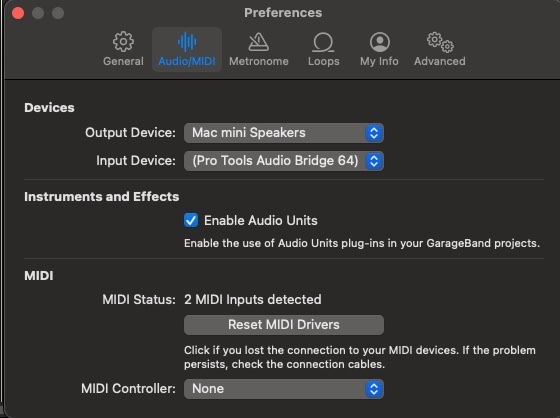
- Navigate to GarageBand > Settings > Audio/MIDI.
- Uncheck Enable Audio Units, and then recheck Enable Audio Units, and restart GarageBand. This will force GarageBand to rescan all installed AU plugins, including the AIR plugins.
Reset the GarageBand Plugin Cache
If prompted to activate the plugin when loaded in GarageBand, but it is showing as activated within the Software Center. Please follow the steps below to reset your Audio Unit (AU) plugin cache:
- Close GarageBand
- Launch Finder
- Go to the following location:
Users\username\Library\Caches\AudioUnitCache- To access the hidden user library - Go to the main user folder and press CMD + Shift + . (Period)
Alternatively, click the Go menu, hold down the Option key, and select Library
- To access the hidden user library - Go to the main user folder and press CMD + Shift + . (Period)
- Delete the following files:
- com.apple.audiounits.cache
- com.apple.audiounits.sandboxed.cache
- Empty the trash can
- Relaunch GarageBand and attempt to load your plugin
Clear GarageBand Preferences
In cases where the activation prompt persists. It is highly recommended to reset GarageBand's preferences via the steps below:
Important note - these steps will reset any user preferences in GarageBand. You may wish to take a screenshot of your settings if any adjustments have been made.
- Close GarageBand
- Open Terminal
- Copy and paste the following prompts below into Terminal:
defaults delete com.apple.garageband10
- Users who have updated GarageBand from an older version will need to copy and paste an additional prompt:
defaults delete com.apple.garageband
- Users who have updated GarageBand from an older version will need to copy and paste an additional prompt:
Press Enter for Terminal to complete the prompt
- Reopen GarageBand and load your plugin
If you continue to experience activation issues within GarageBand, please get in touch with our support team, who will be happy to assist you further!
Update GarageBand and Plugins
Make sure both GarageBand and your AIR plugins are up to date. Check the Mac App Store for any GarageBand updates and the inMusic Software Center for plugin updates.
For further assistance in reinstalling your Air plugins, please follow this guide:
AIR Music Tech | Installing and Activating your AIR Plugins
If you continue to experience issues with using our software in GarageBand, please get in touch with our support team, who will be happy to assist you further!