
In this article we will go through the steps to map your MPC plugin instrument/FX parameters to your MIDI controller in MPC in Standalone mode and within MPC desktop software (MPC 3, MPC 2 and MPC Beats)
TABLE OF CONTENTS
Overview
You can use the MIDI Learn function to assign external MIDI controllers to various parameters in your specific MPC project:
- Mixer parameters such as volume, pan, mute, and solo* for tracks, returns, submixes, and main outputs.
- Pad parameters (for drum tracks only) such as tuning, filter and amp envelopes, layer settings, LFO settings, and velocity.
- Track parameters, which depend on the track type.
- Insert effects parameters, which depend on the effect type.
These assignments will be saved with your MPC project.
*Solo on Standalone is currently only available on MPC 2.15.1 and lower
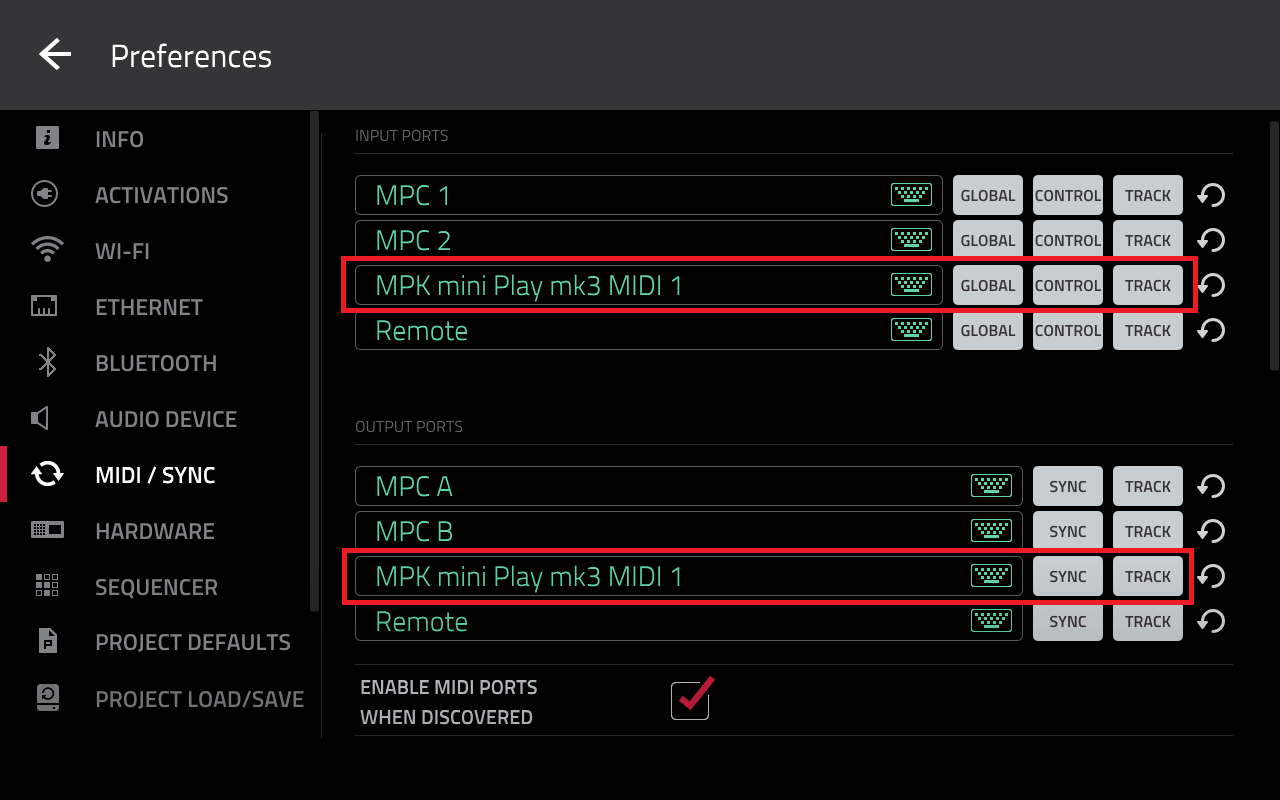
MPC Standalone - Plugins/FX
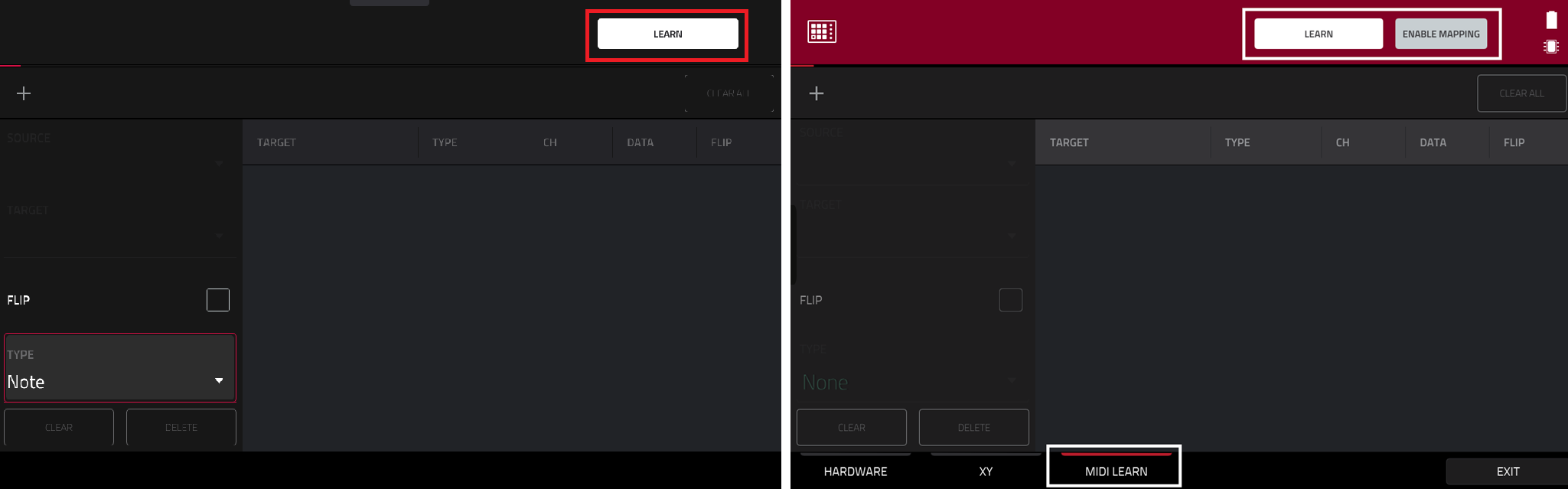
4. Tap LEARN (MPC 3) or LEARN + ENABLE MAPPING (MPC 2)
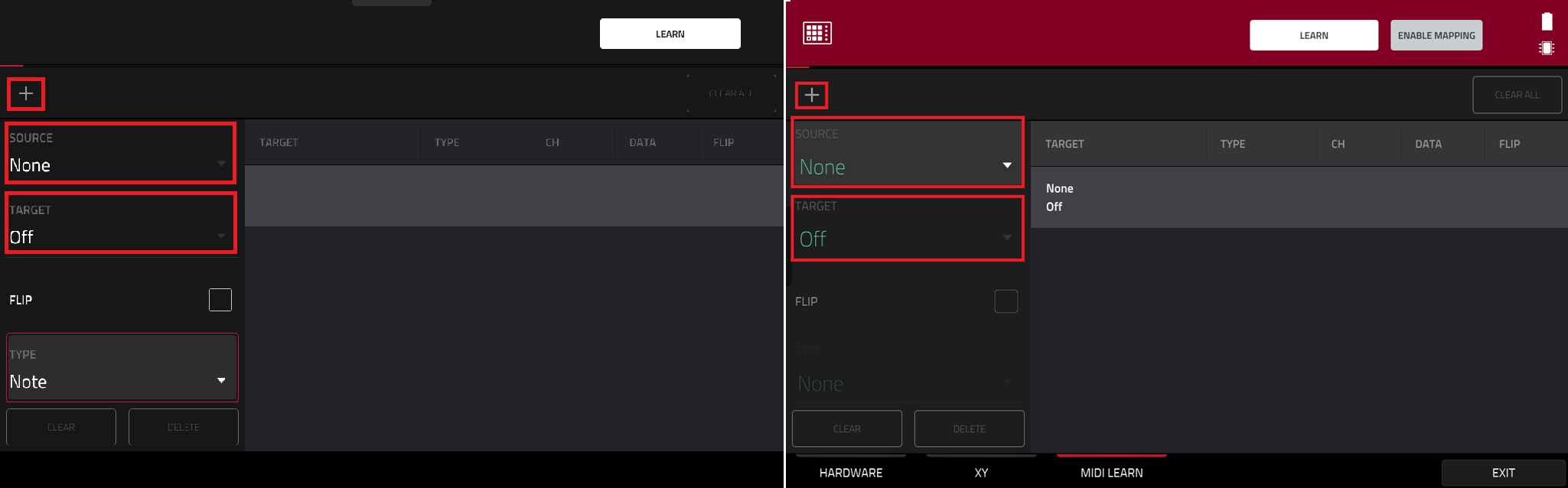
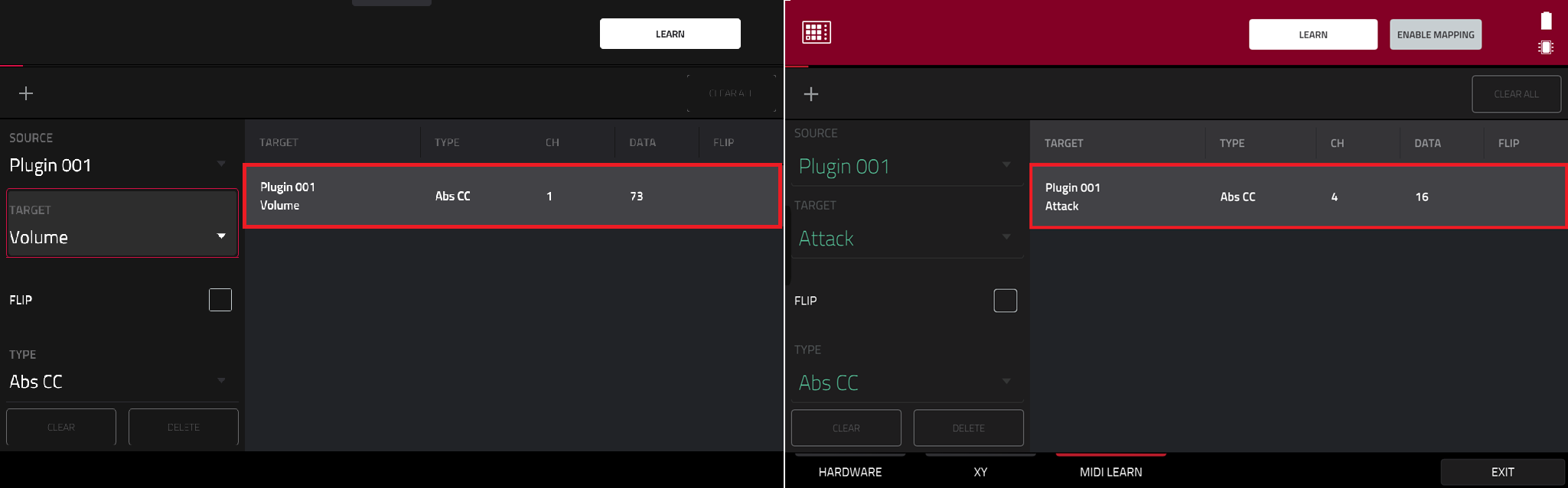
That's it, your controller is now mapped!
MPC Standalone - Transport Control
Please note that the MPC's transport controls cannot be mapped to an external MIDI device in MIDI Learn. For transport control, you will require a MIDI controller that supports MMC (MIDI Machine Control).
Please refer to this article for more information: Akai Pro MPC Series | Connecting the MPC to External Gear
MPC Software
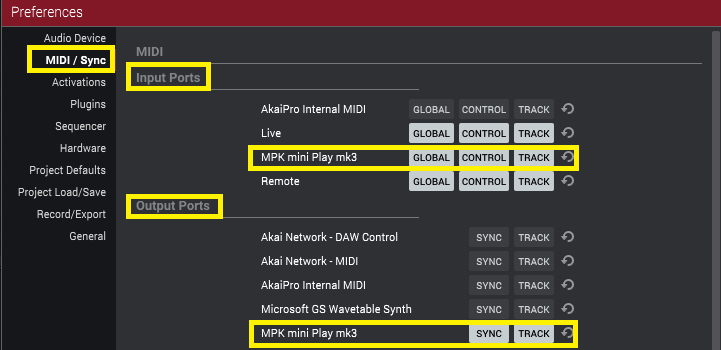
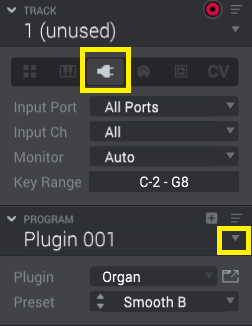



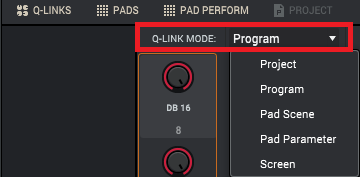
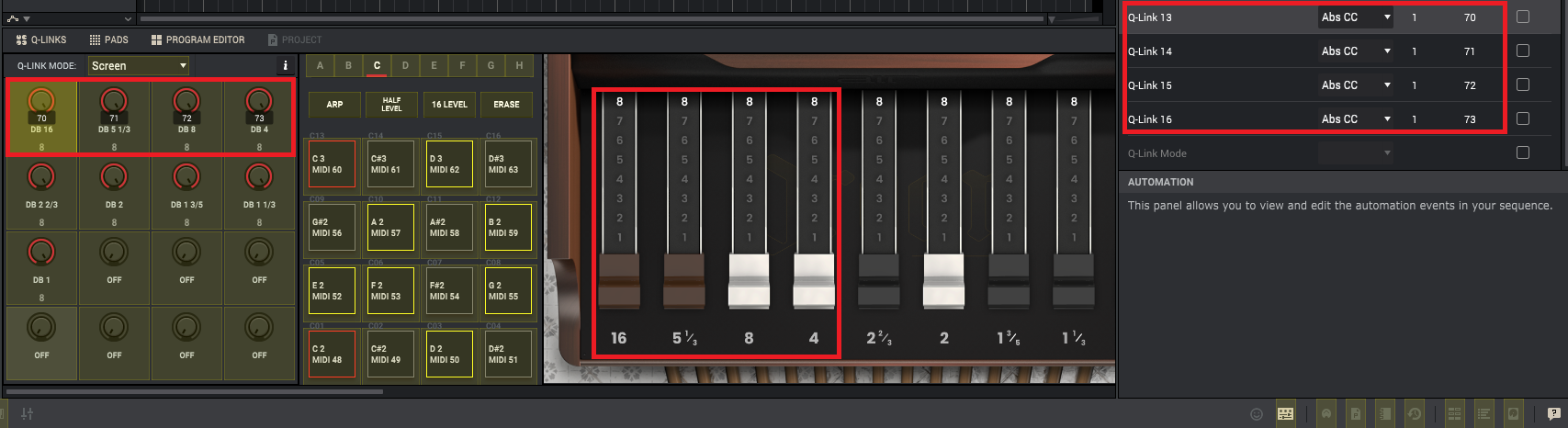

That's it, your controller is now mapped!
Related Articles
- Akai Pro MPC Beats & MPC 2.0 | Creating, Exporting, and Importing New Midi Maps
- Akai Pro MPC Beats | Assigning FX Parameters to your MIDI controller's Faders/Knobs
- Akai Pro MPC Series | Configuring MIDI Ports for Multi-MIDI Control