

In this guide, we will be outlining how to install the preset expansion kit in its entirety.
TABLE OF CONTENTS
Controller Mode
1. Please open the inMusic Software Center and under "My Expansions", click "Download" & "Install."
2. When you go to load Air Flavor Pro in your DAW or MPC software, the presets will then be deposited into the plugin and will appear like this in its own section:
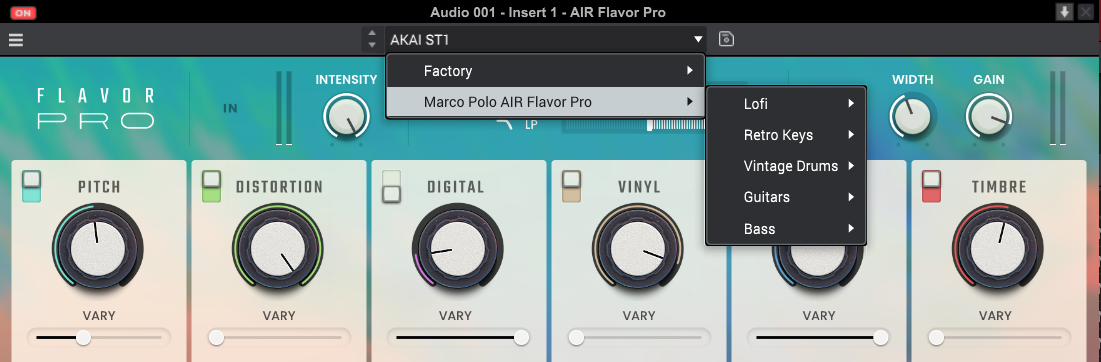
Please note: That these expansion files can only be used with the Air Flavor Pro plugin and will only be made available to you if downloaded from the inMusic Software Center correctly.
Standalone Mode
Please refer to the inMusic Software Center for this portion of the guide after the purchase has been made and you are logged into your inMusic Profile.
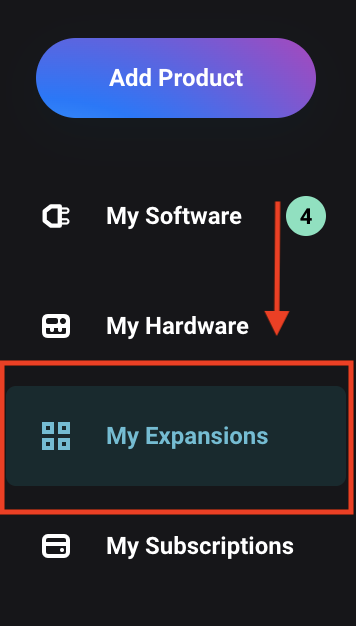
1. Click My Expansions from the tab on the left:
2. Scroll down to Preset Expansions
Note: if the expansion is not seen, you may have purchased the software using a different email to your inMusic Profile - If you're in this position, contact our support team for assistance.
3. Click the drop-down icon to download the build suited for your Akai Hardware - Click Download. See the screenshot below:

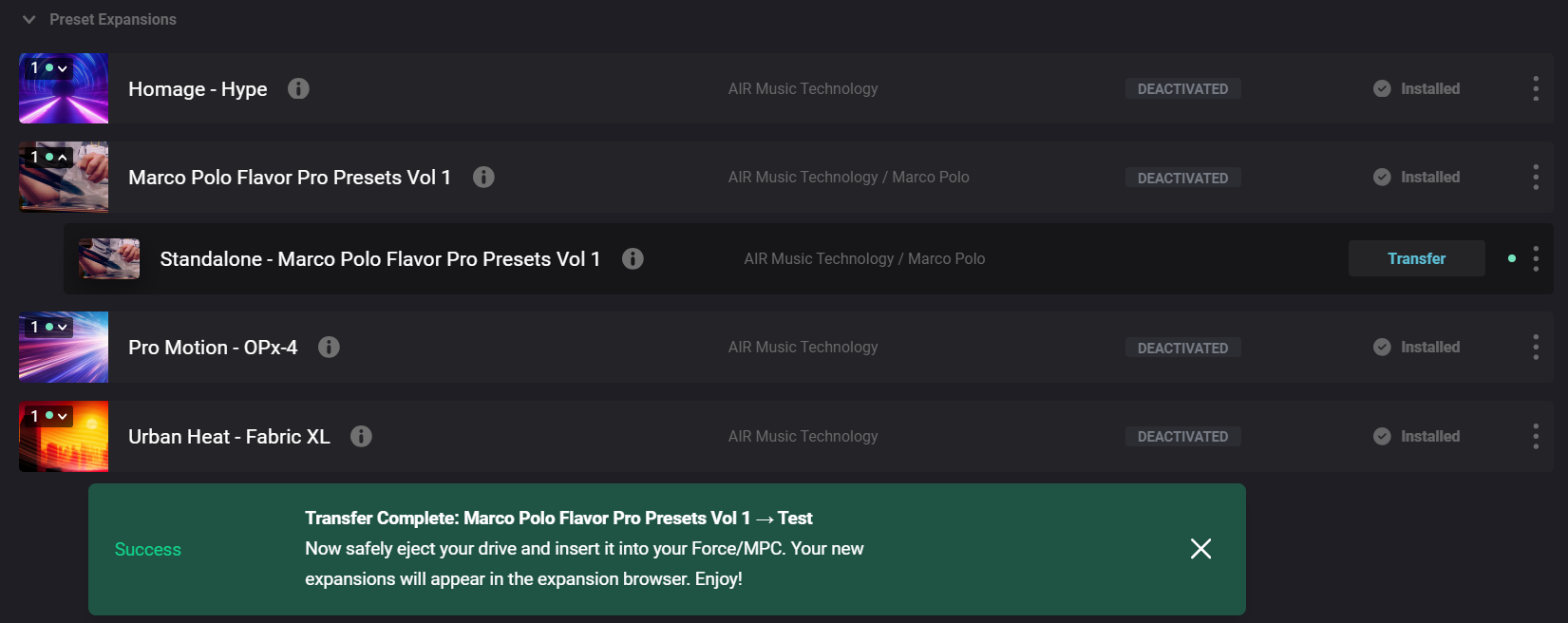
4. Once downloaded, click 'Transfer'
Note: If 'Transfer' does not appear... You have downloaded the expansion installer for desktop - Navigate back to step 3.

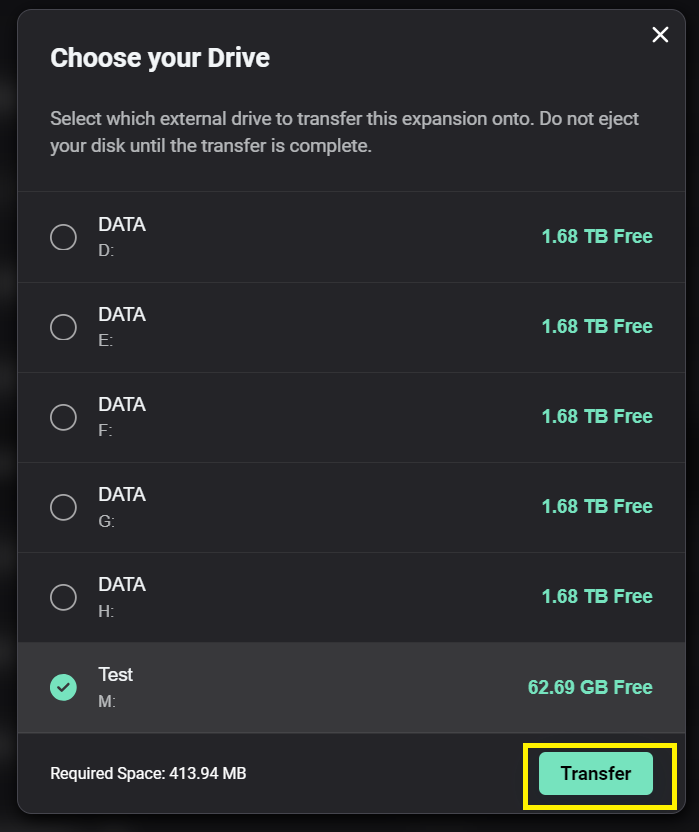
7. Wait for the files to transfer
8. Once the transfer is complete, you will receive a Transfer Complete message confirming the drive the expansion has been transferred to
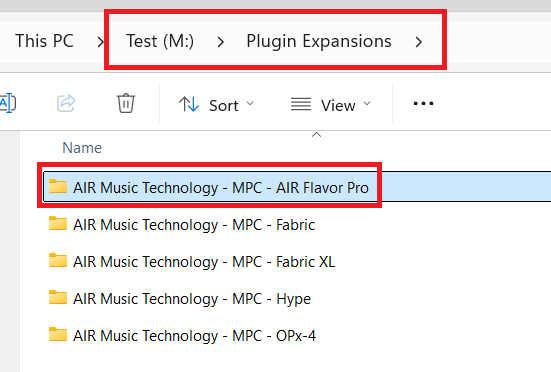
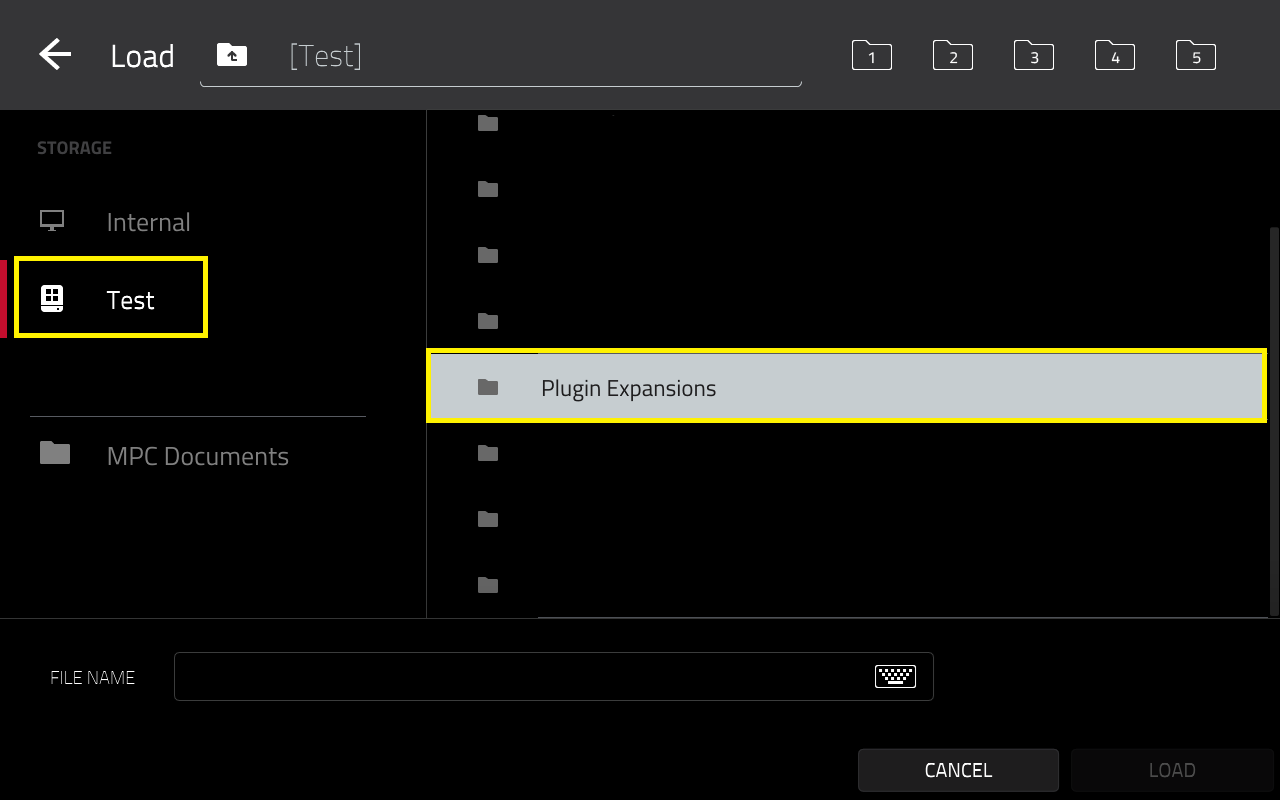
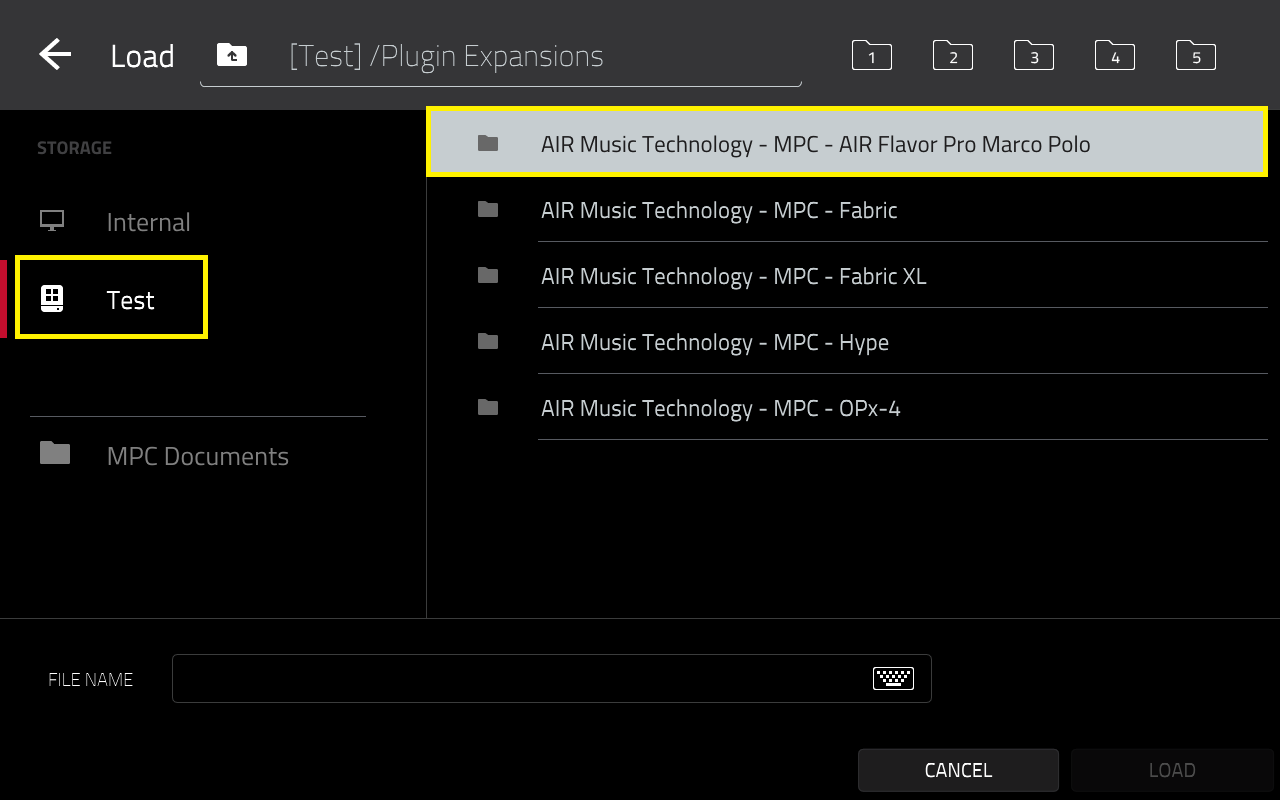
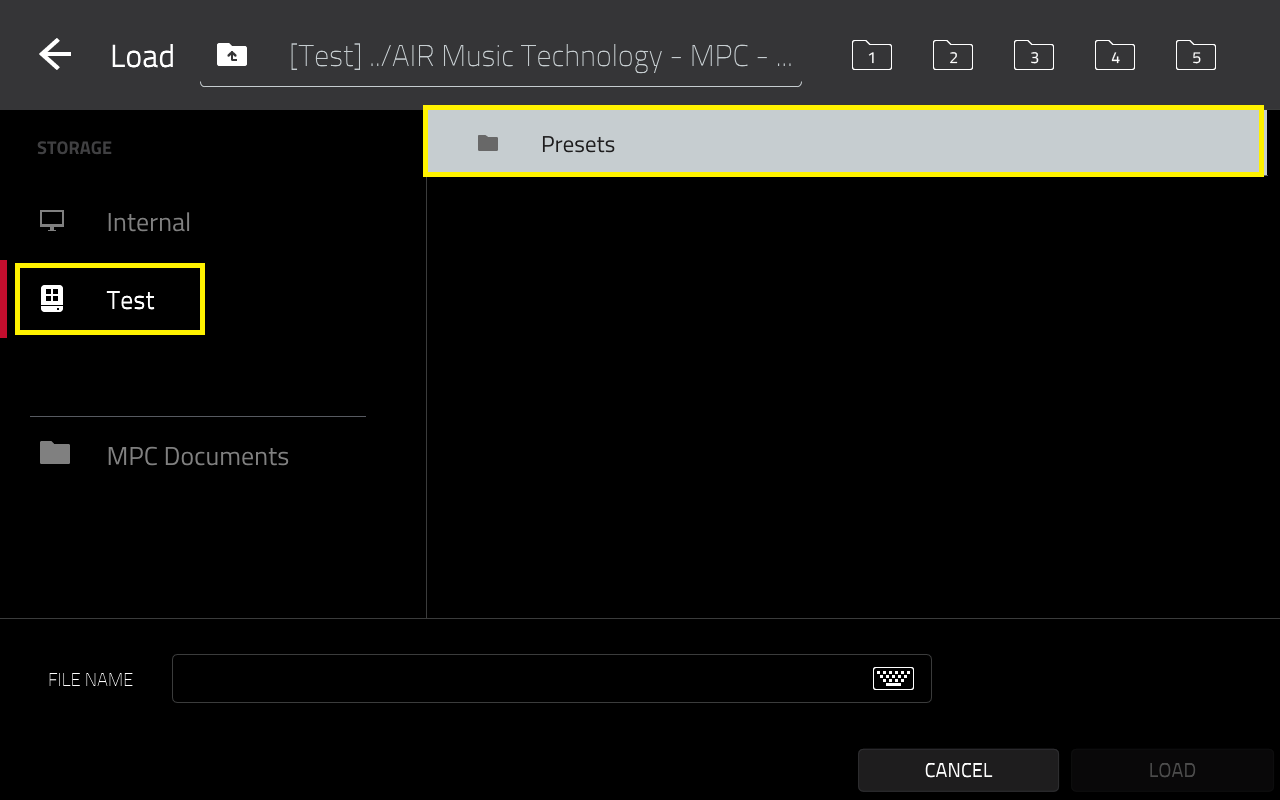
9. The plugin preset will be in the Plugin Expansions folder on your drive.
10. Safely eject the drive from your computer/place your MPC/Force back in standalone mode.
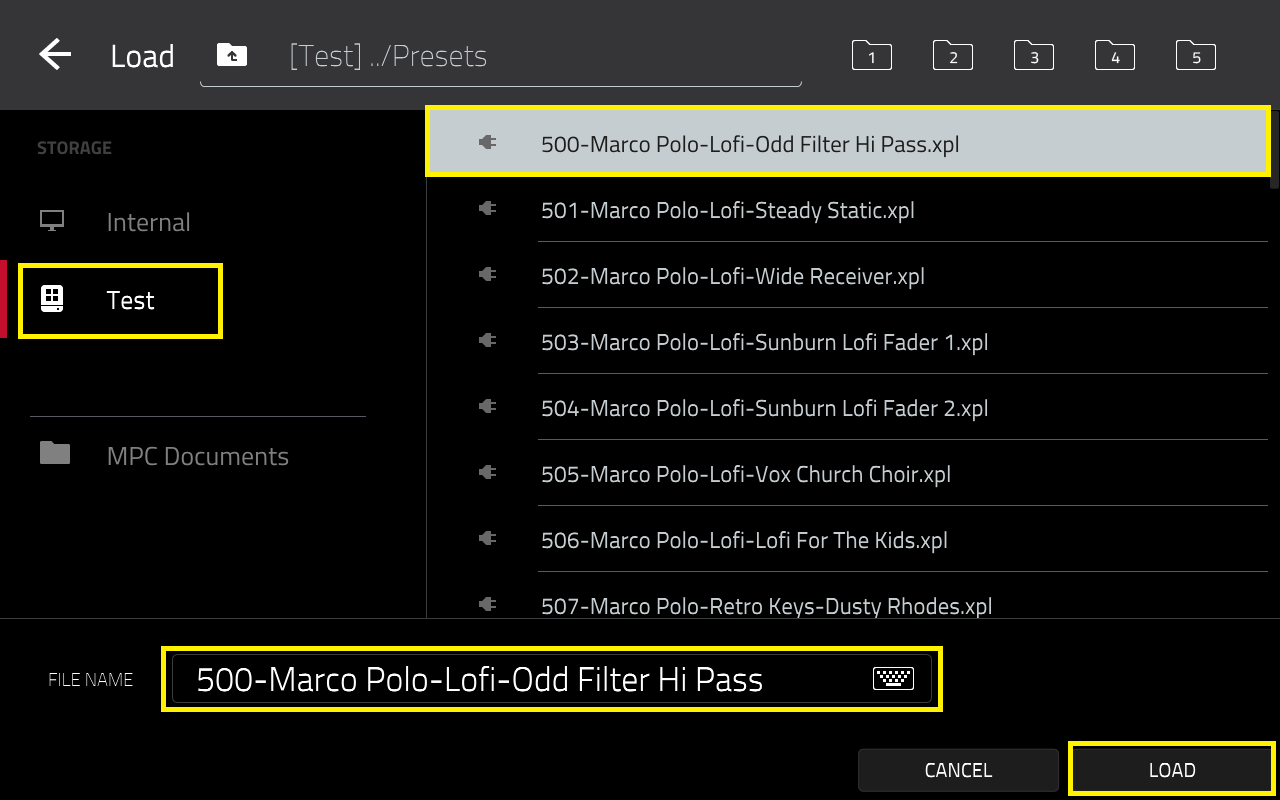
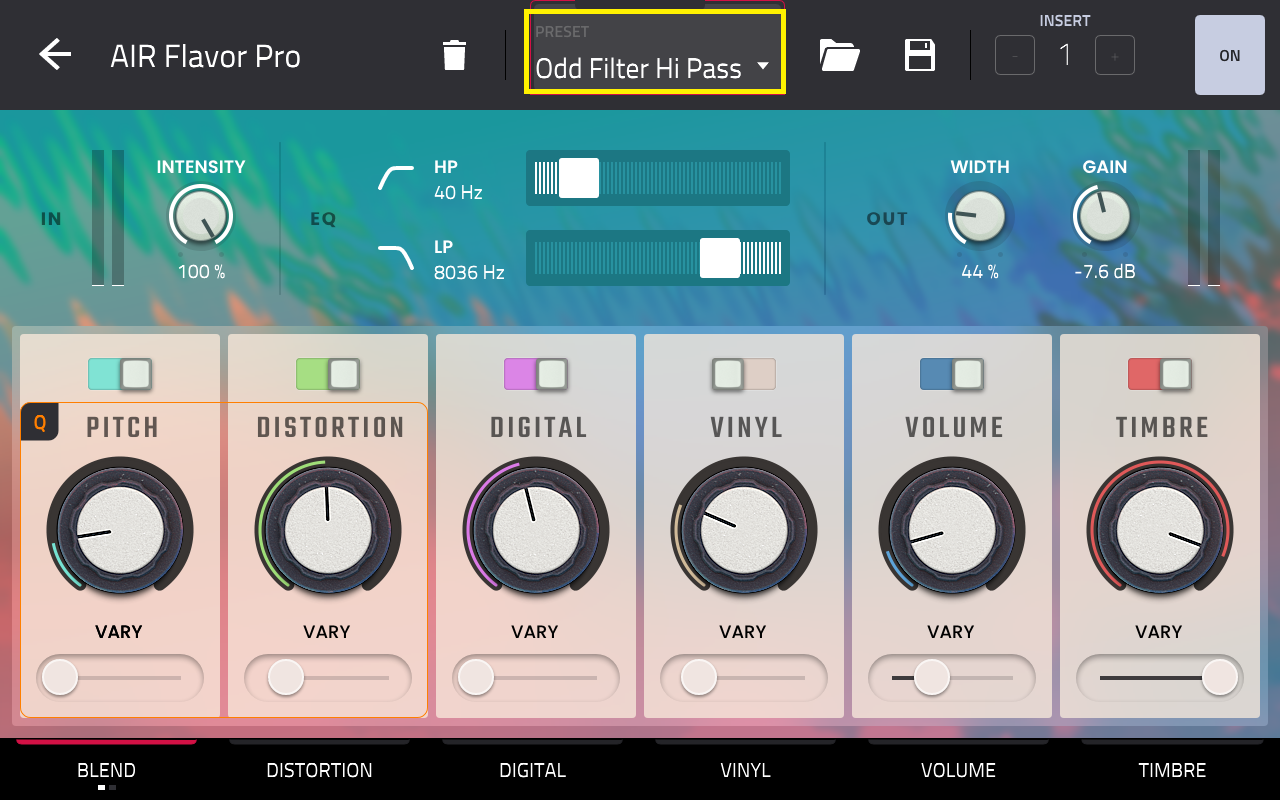
Locating and Using Marco Polo Preset Vol 1 on MPC Standalone:
Important: Ensure Flavor Pro is activated in the Activations menu on your MPC via Menu > Preferences > Activations. If you do not have Flavor Pro, please purchase it at: MPC Store - Flavor Pro
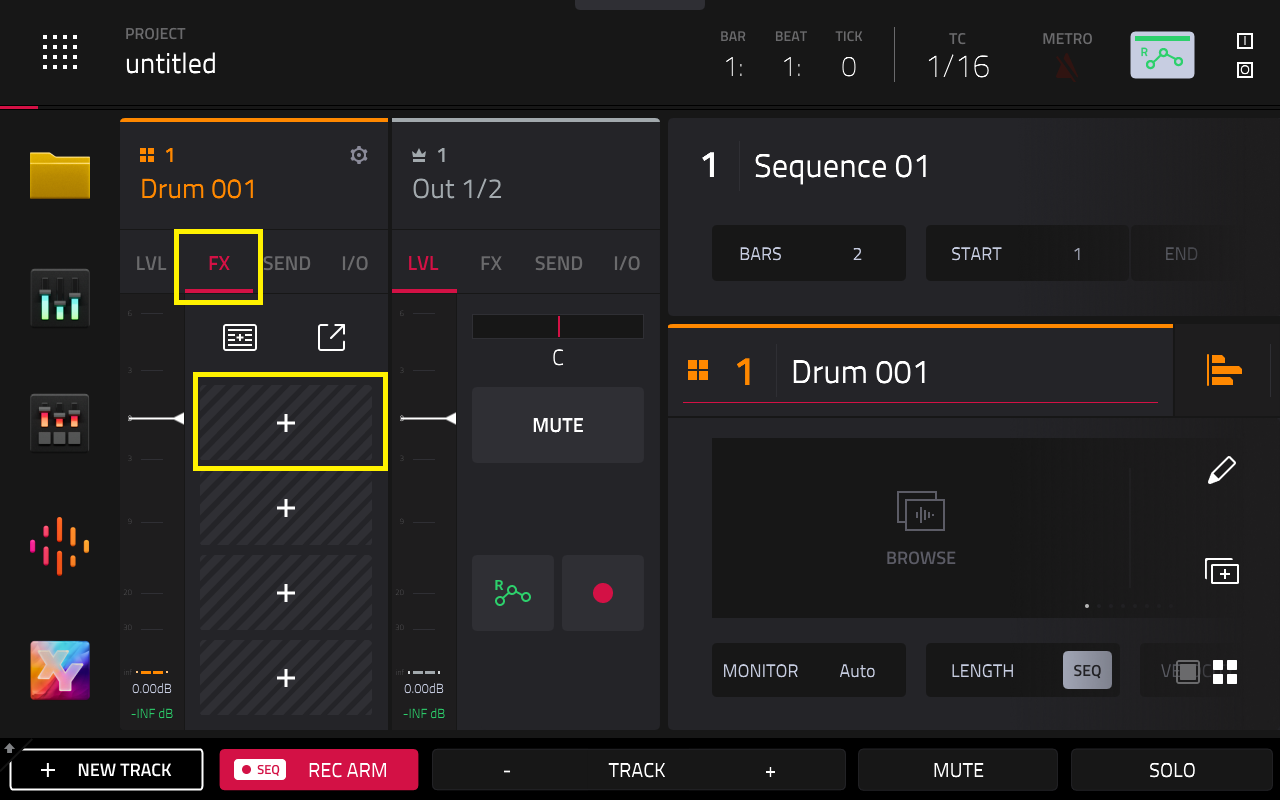
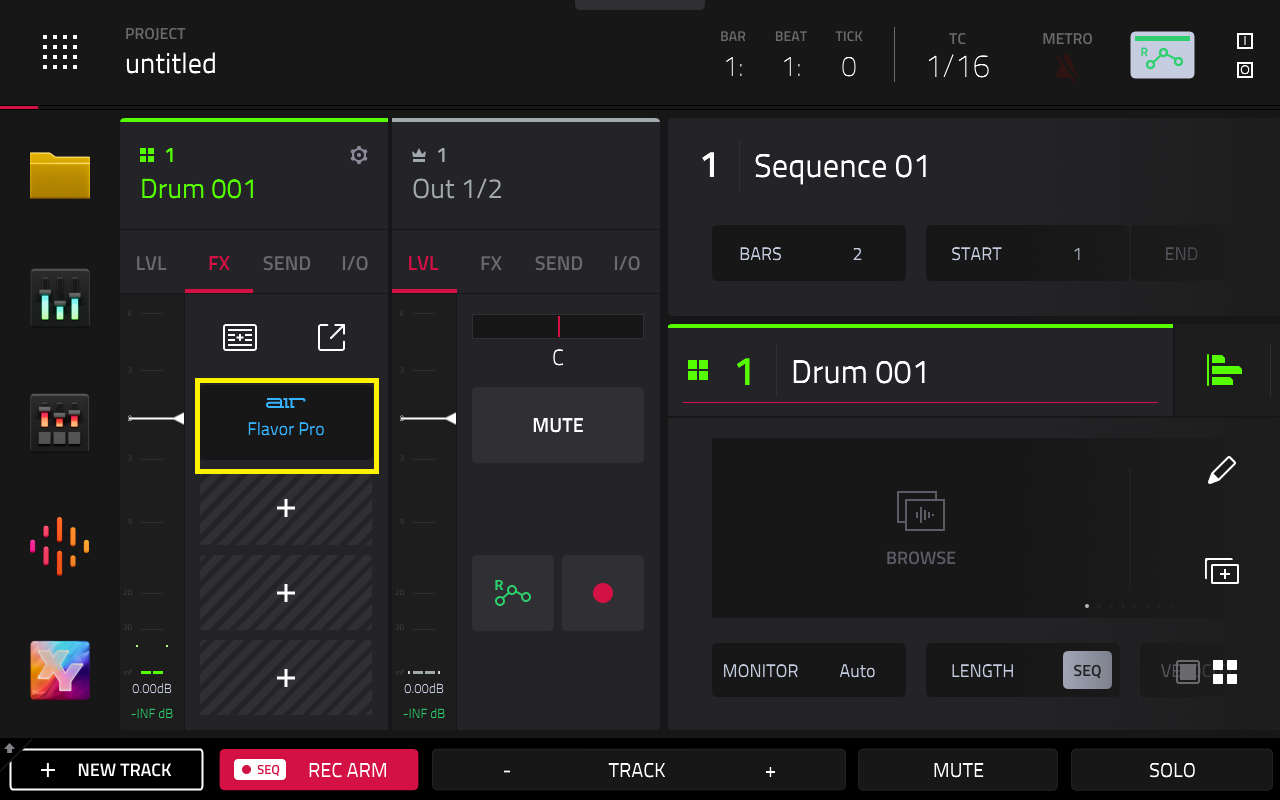
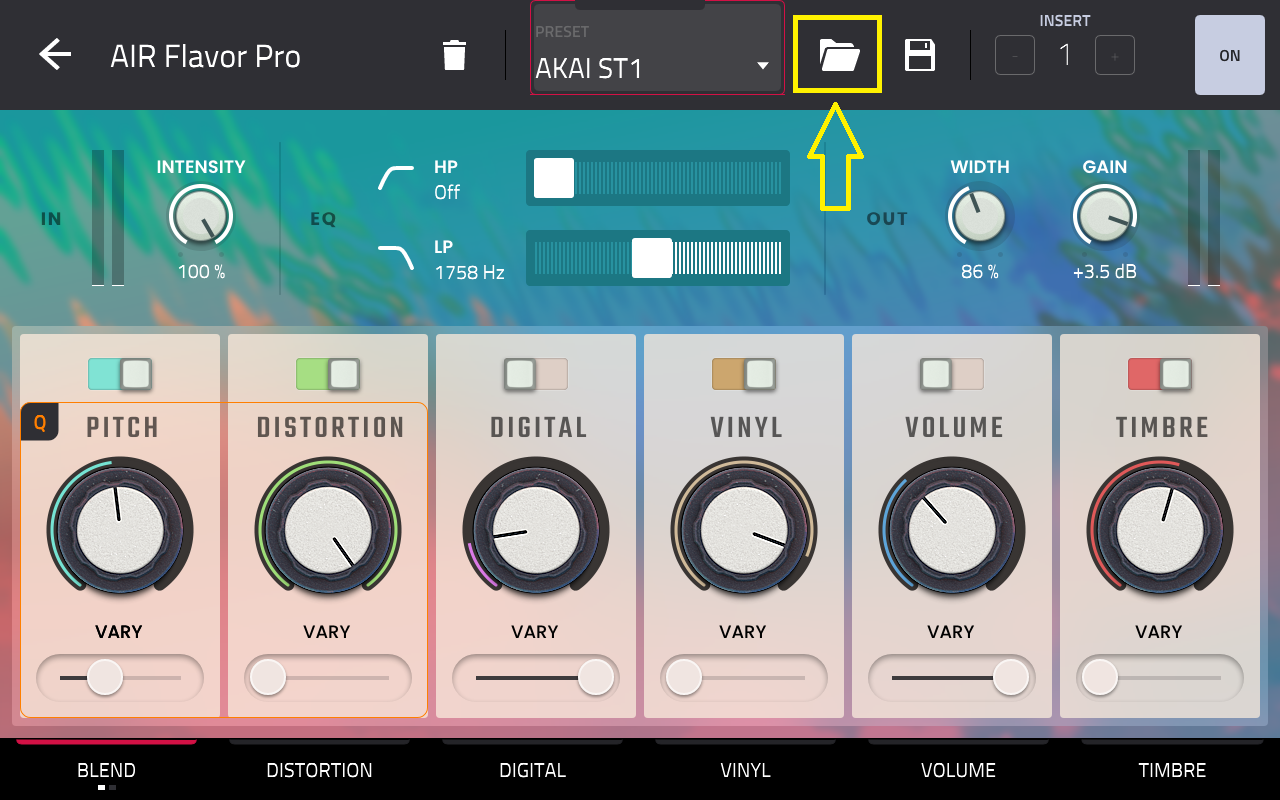
1. Go to the FX tab and tap the + icon
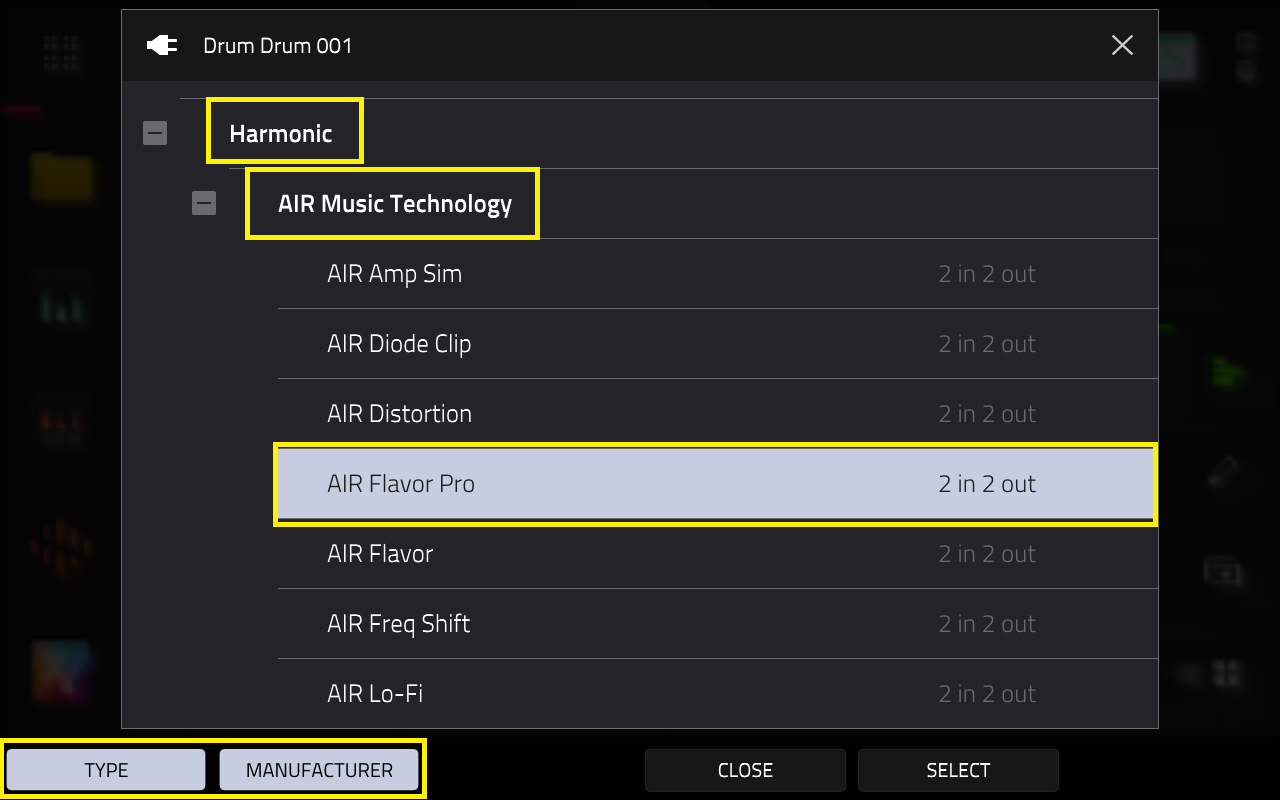
Thank you for your time and for reading this article, we hope this information is helpful.
For more resources and an extensive library of video tutorials, please visit our YouTube page here