
For users looking to uninstall their Native Instruments Software from their Mac, this article will provide the necessary steps to remove all Native Instruments content from their system.
Note: If you want to uninstall Traktor software from a Mac computer, please refer to this article.
TABLE OF CONTENTS
Content Products
With Native Access 3.6 (and higher), Content products like Kontakt libraries, Expansions, etc. can be uninstalled directly from the Library tab. Click the 3 dots on the right-hand side of the product entry and select Uninstall.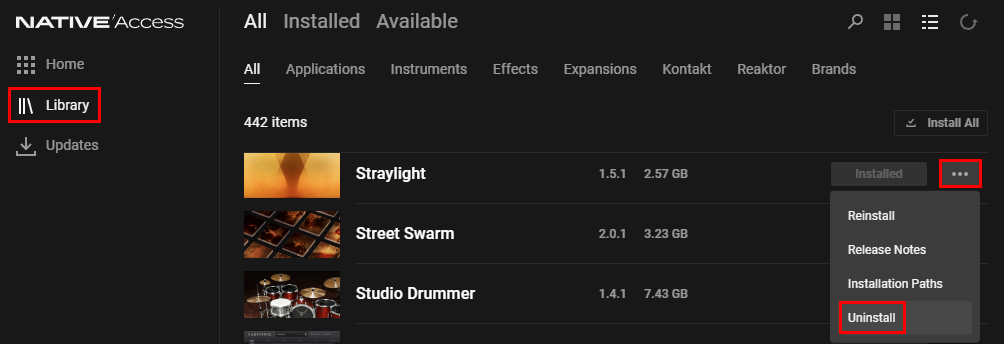
Programs and Plug-ins
To uninstall non-content products like Kontakt, Maschine, Ozone, etc. please read on:
The list below includes all files and folders created on your system after installing any of our products. If you wish to completely uninstall a Native Instruments product from your computer, those are the files that must be removed.
Depending on the product, some of these files and folders may not exist on your system.
We recommend checking all locations listed below for the files that can be found.
To uninstall your NI application manually, remove the following files and folders from your system:
Application Files
- Macintosh HD > Applications > Native Instruments > *Product Name* (folder)
- Macintosh HD > Library > Preferences > com.native-instruments.*Product Name*.plist
- Macintosh HD > Users > Shared > Native Instruments > installed_products > *Product Name*.json
Plug-in Files
- Macintosh HD > Library > Audio > Plug-ins > Components > *Product Name*.component
- Macintosh HD > Library > Audio > Plug-ins > VST > *Product Name*.vst
- Macintosh HD > Library > Audio > Plug-Ins > VST3 > *Product Name*.vst3
- Macintosh HD > Library > Application Support > Digidesign > Plug-ins > *Product Name*.dpm
- Macintosh HD > Library > Application Support > Avid > Audio > Plug-ins > *Product Name*.aaxplugin
App-specific Data and Support Files
- Macintosh HD > Library > Application Support > Native Instruments > *Product Name* (folder)
- Macintosh HD > Library > Application Support > Native Instruments > Service Center > *Product Name*.xml
If you wish to uninstall software that comes with a controller (i.e. MASCHINE or KOMPLETE KONTROL), then please also delete the following folder:
- Macintosh HD > Library > Application Support > Native Instruments > Hardware (folder)
Preferences Files (User Library)
- Macintosh HD > Users > *Your User Name* > Library > Preferences > com.native-instruments.*Product Name*.plist
- Macintosh HD > Users > *Your User Name* > Library > Application Support > Native Instruments > *Product Name* (folder)
Note: the User Library folder is hidden. To access it, click on Go in the menu bar and hold down the Alt key. You'll now find the Library entry in the menu: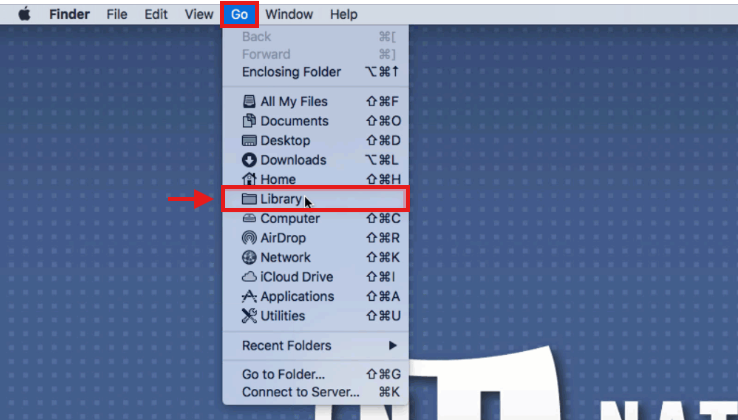
It is necessary to restart your computer after deleting the above-mentioned files to make the changes permanent.
Content Files (only for Native Access 3.5 and below)
Content such as Kontakt Libraries (e.g. Playbox, Session Strings), Factory Libraries, Reaktor ensembles, etc. will also have a library folder that can be deleted.
It is located in the content directory you chose during installation. By default that is:
- Macintosh HD > Users > Shared > *Product Name*
Note: it is NOT necessary to uninstall the library in most cases to fix common issues. You can safely leave this folder in place in most cases.