

If you’ve purchased MPC expansion packs, you can download and install them using the inMusic Software Center.
TABLE OF CONTENTS
Quick Steps
- Download and open the inMusic Software Center
- Log in with the account used for your purchase
- Go to My Expansions → MPC Expansions
- Click Download, then Install
Note: Make sure you’re logged into the correct inMusic account. Your expansions are tied to the email used at purchase.
Using a different type of expansion?
If you purchased one of the following, please use the dedicated guides below:
Plugin Preset Expansions
MPC Standalone | Plugin Preset Expansion Pack Installation Instructions
Native Instruments Expansions
MPC Edition | Native Instruments Expansion Packs Setup/FAQ
Downloading MPC Expansions (Detailed Steps)
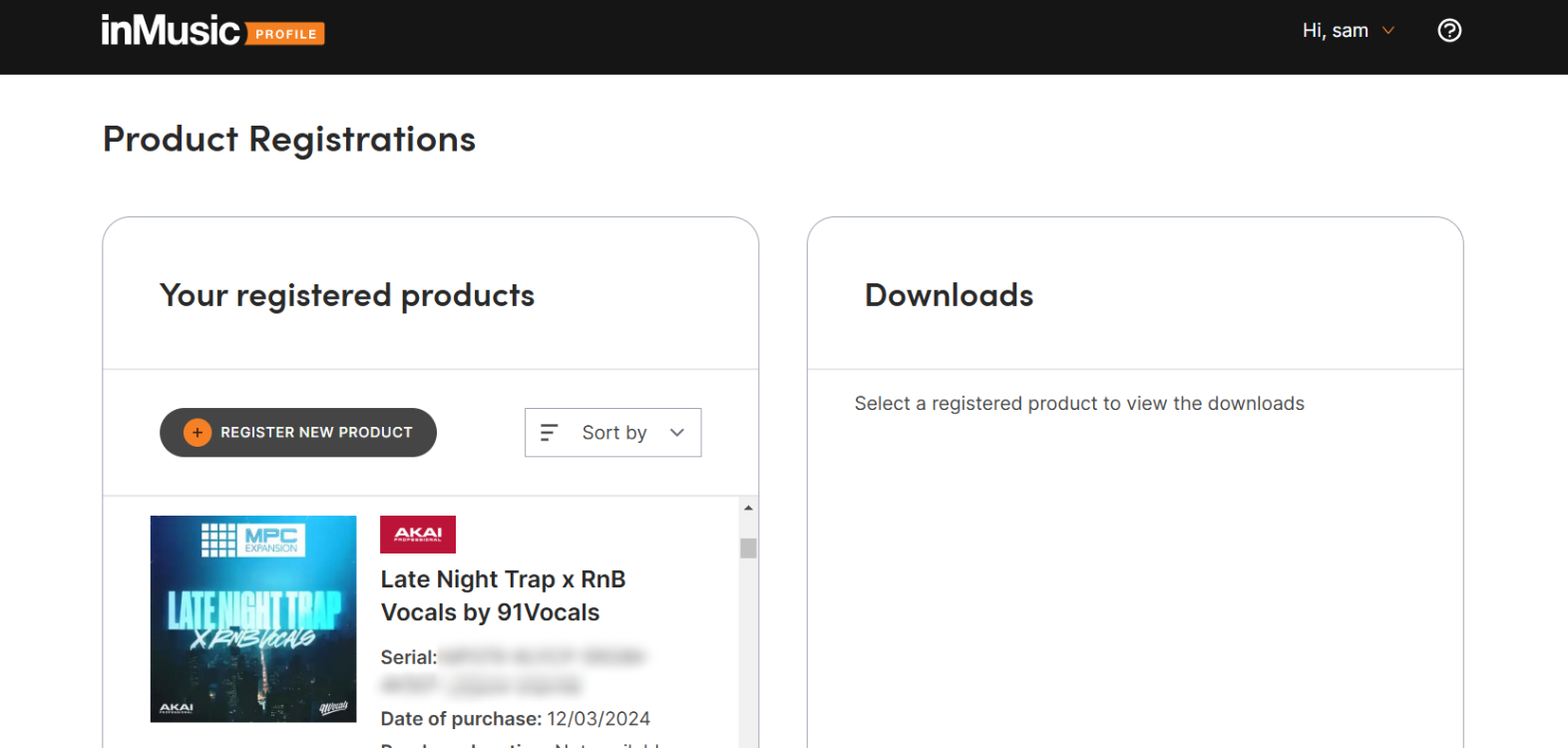
Locating Your Akai Professional Account
- After purchasing an expansion, it will automatically be linked to your inMusic Profile account. If you're unsure of the account, it is likely the email address you used at the time of purchase.
Download the inMusic Software Center
Download and install the inMusic Software Center: Download inMusic Software Center.
Log in
Sign in using your Akai/inMusic account (the same email used for purchase).
Find your expansions
Go to:
My Expansions > MPC Expansions
Here, you'll find all of your purchased expansions available for download and installation.
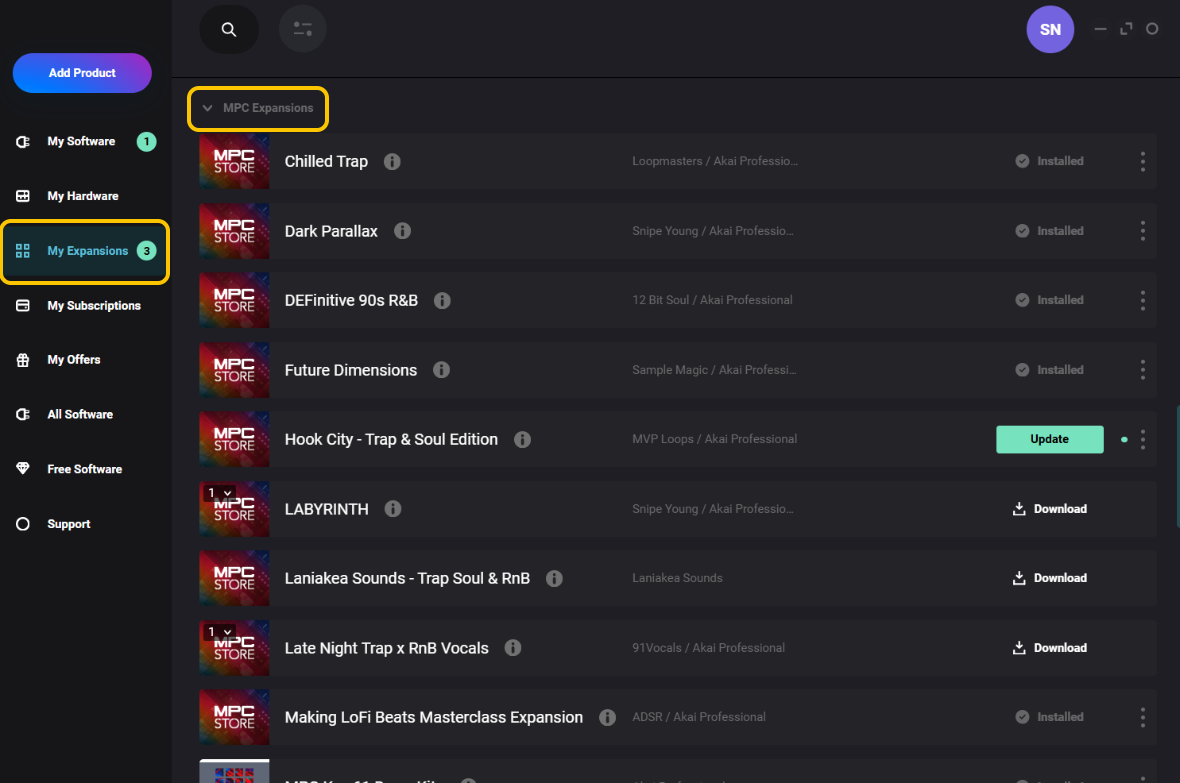
Important Note: Some expansions will have a dedicated 'Standalone' dropdown, if your pack has this - skip to Download and Install Your Expansions (Standalone Zip).

If your expansion does not have a 'Standalone' dropdown - continue with the steps below:
Download and Install
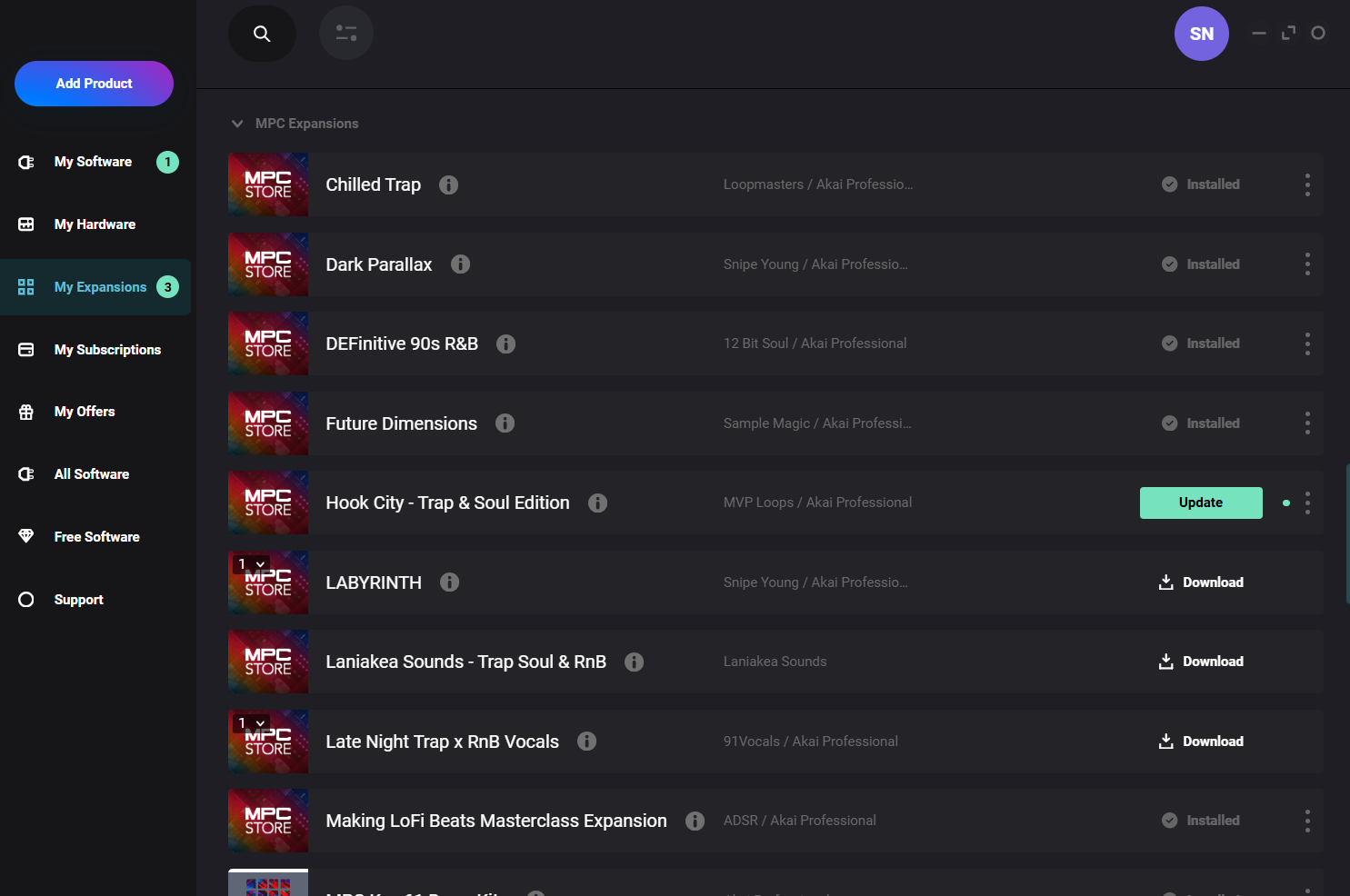
Click the Download button next to your desired expansion pack

Once the download has finished, click Install
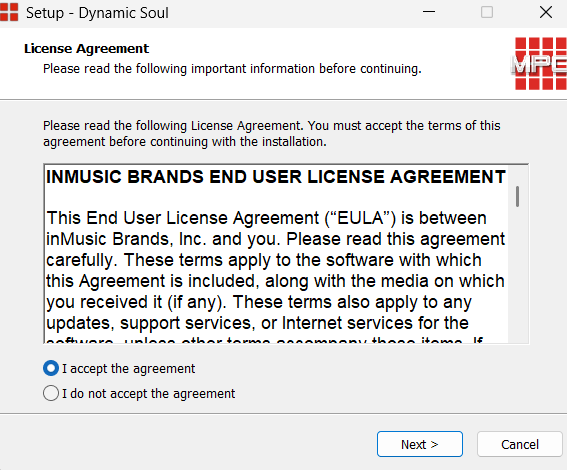
Follow any on-screen prompts to complete the installation process.
Exporting to MPC Standalone Hardware
To export your expansion pack to an MPC Standalone device, see this article Exporting Expansions from the MPC Software
Download and Install Your Expansions (Standalone Zip)
*Note, these steps do not apply to the Native Instruments MPC Expansions
1. Navigate to My Expansions > MPC EXPANSIONS
2. Here, you'll find all of your purchased expansions available for download and installation.


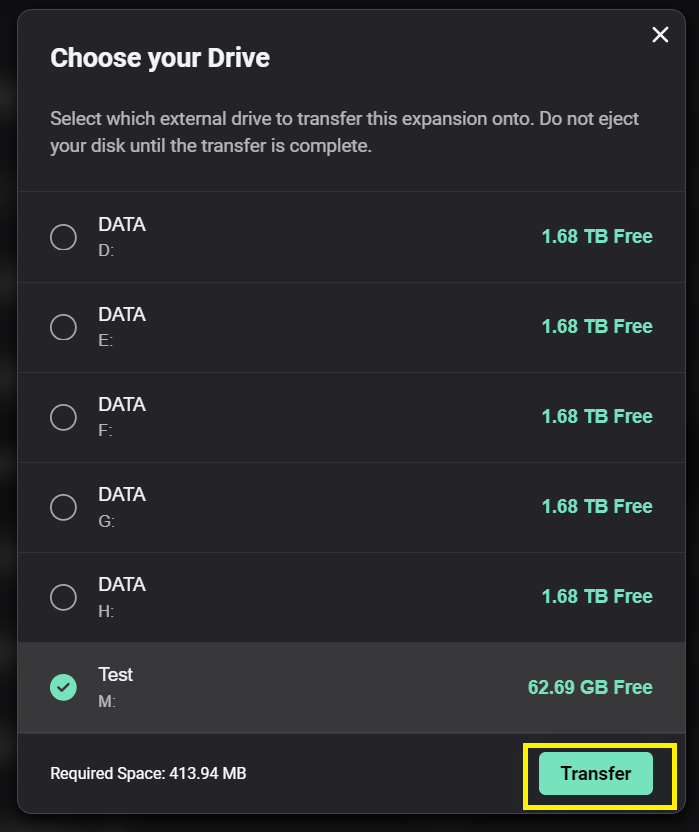
Note: MPC Key 37 and MPC One series users - The USB-A port will not mount a USB drive in controller mode. If you are using a USB drive, connect it to the USB port on your computer. Alternatively, you can connect an SD card directly to the MPC as this will mount on your computer.
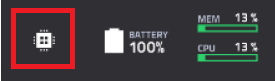
7. Wait for the files to transfer

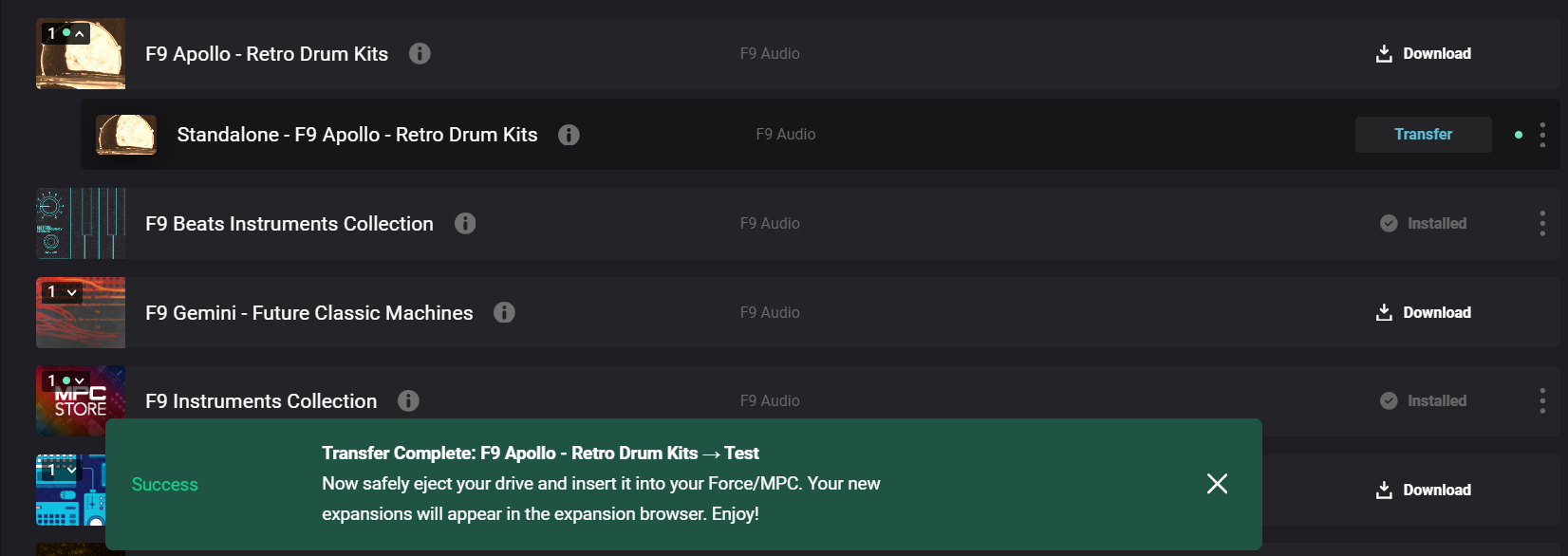
8. Once the transfer is complete, you will receive a Transfer Complete message confirming the drive the expansion has been transferred to
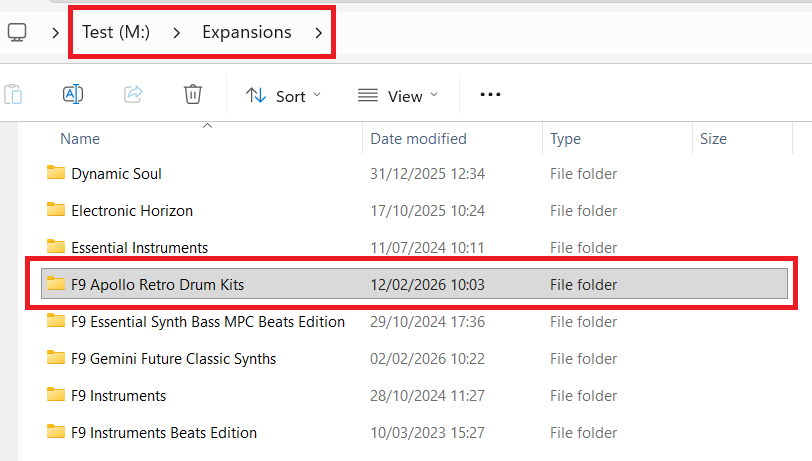
9. The expansions will be in the Expansions folder on your drive.
10. Safely eject the drive from your computer/place your MPC back in standalone mode.
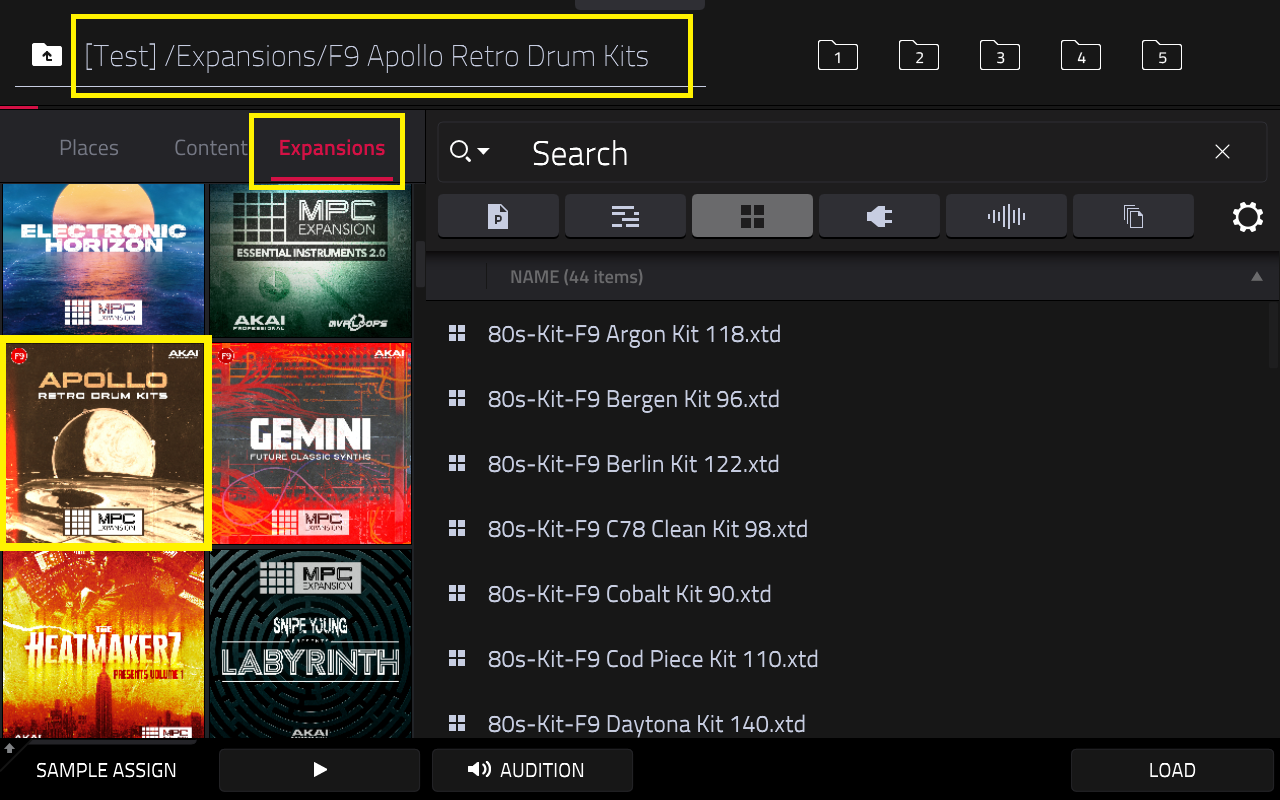
Should you require further assistance with locating expansions on your MPC, refer to this guide: Akai Pro MPC Series | How to Audition Expansions and Samples
If you're experiencing any issues accessing your expansions, ensure you're logged into the correct account. If problems persist, feel free to contact our support team for further assistance.