
This article will guide you through installing and authorizing BFD3 expansion packs.
Note: Ensure BFD 3.5 update has been performed/installed BFD 3 | How to Install & Authorize BFD 3 Software
TABLE OF CONTENTS
- Accessing your BFD Expansion Pack(s) within the inMusic Software Center
- Loading/Scanning expansion content in BFD3
- FAQ / Troubleshooting
- How much storage is required on my computer for download & installation?
- I have limited storage on my machine. Can I download an expansion to an external drive?
- My expansions won't start downloading. What should I do?
- My expansion pack is missing from the inMusic Software Center. What should I do?
- Why do I have Yellow Triangles on my presets or Kits?
- I used the BFD License Manager before. Why do I need to use the inMusic Software Center now?
Accessing your BFD Expansion Pack(s) within the inMusic Software Center
Note - BFD3.5 is a major update for existing BFD3 users - BFD3, the Core Library, and all Expansion content have received an update. This means BFD3 users must update all content/installers upon use with BFD 3.5.
Use of old content with BFD 3.5 will result in unexpected behaviour and is not recommended.
Download and log in to the inMusic Software Center
- If you're yet to download/install the Software Center, please see here:
https://www.bfddrums.com/downloads.html - After the download/install completes, it will open up the inMusic Software Center
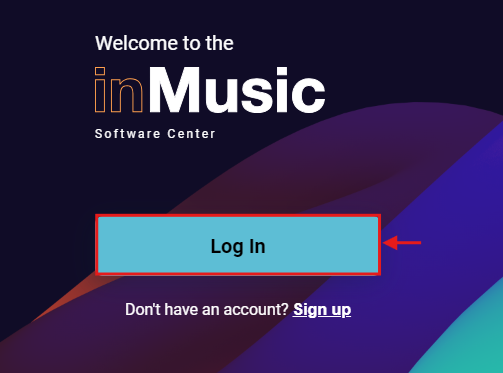
- Click on Log In, and your browser window will open to sign into your newly created inMusic Profile.
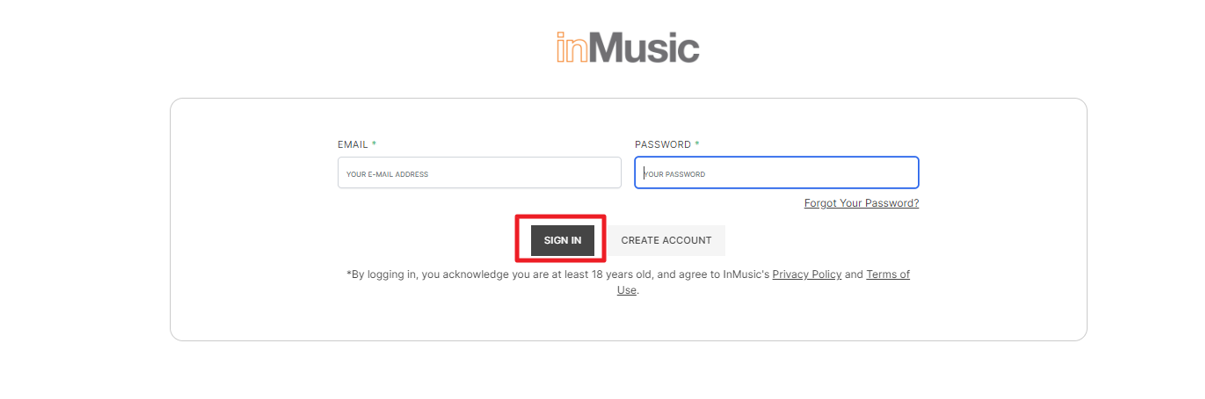
- Enter both your email address and password and click on "SIGN IN"

Download, Install, and Activate your Expansion
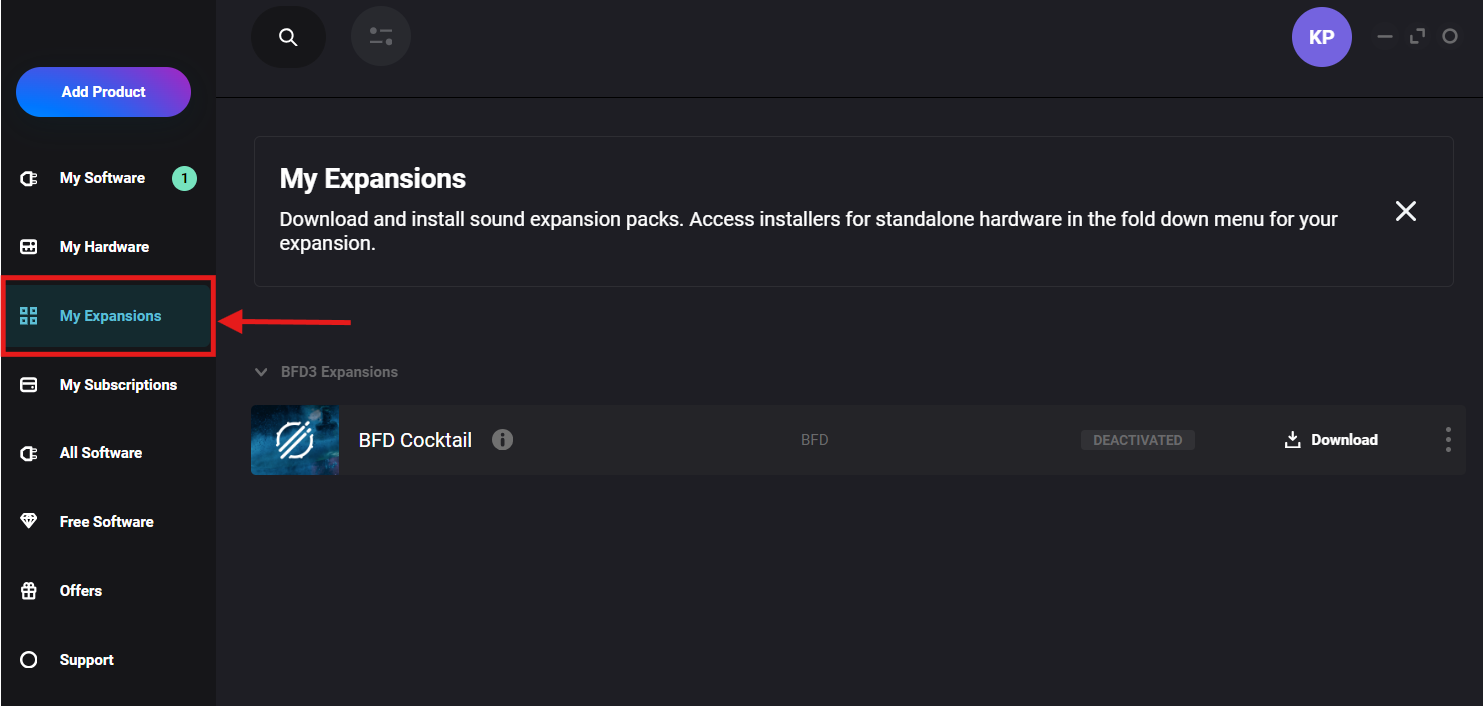
- Navigate to the inMusic Software Center on your computer and click the 'My Expansions' tab to view all expansions in your account:
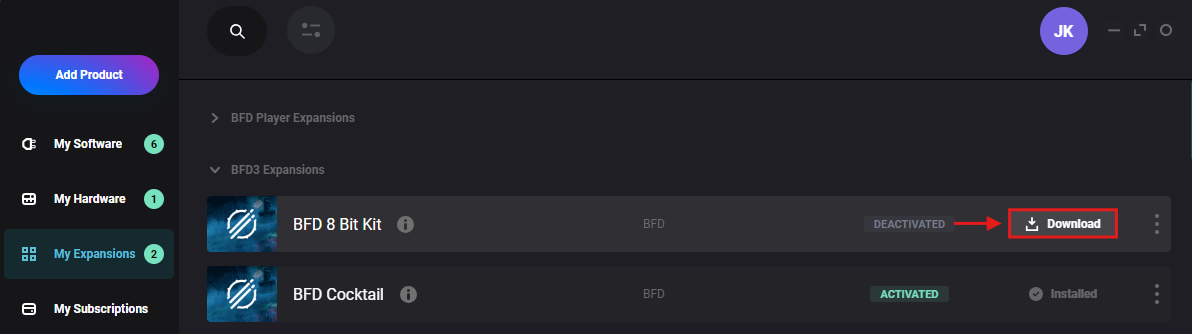
- Click 'Download' on the right side of your expansion:
- Once downloaded and extracted, click 'Install':

- Proceed with Installation steps:
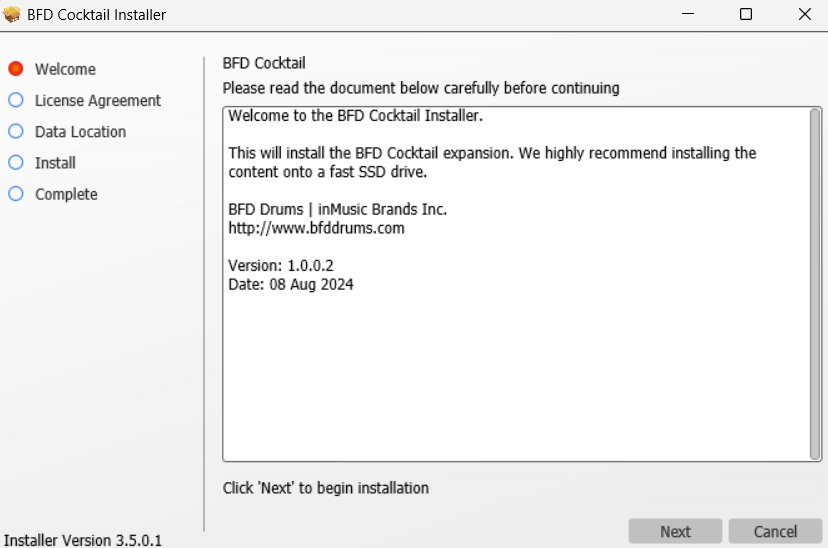
- Select next and make sure you're aligned with the License Agreement.
- On the next screen, you are prompted to specify the installation location of your BFD3 Expansion.
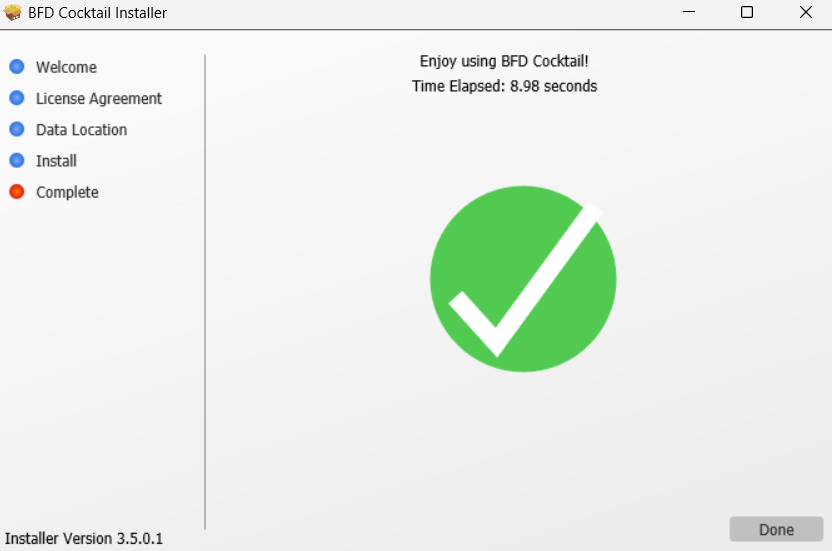
Please note - We recommend the default location, but if you must install it on an external drive, please use an SSD via SATA or externally via USB-C / Thunderbolt for acceptable speeds. - Installation complete!
Loading/Scanning expansion content in BFD3
Note: Ensure BFD 3.5 update has been performed/installed BFD 3 | How to Install & Authorize BFD 3 Software
- Upon launching BFD 3.5 (standalone or plugin), your expansion pack will automatically load into the software upon launch.
- Locate your expansion from the available kits on the left:
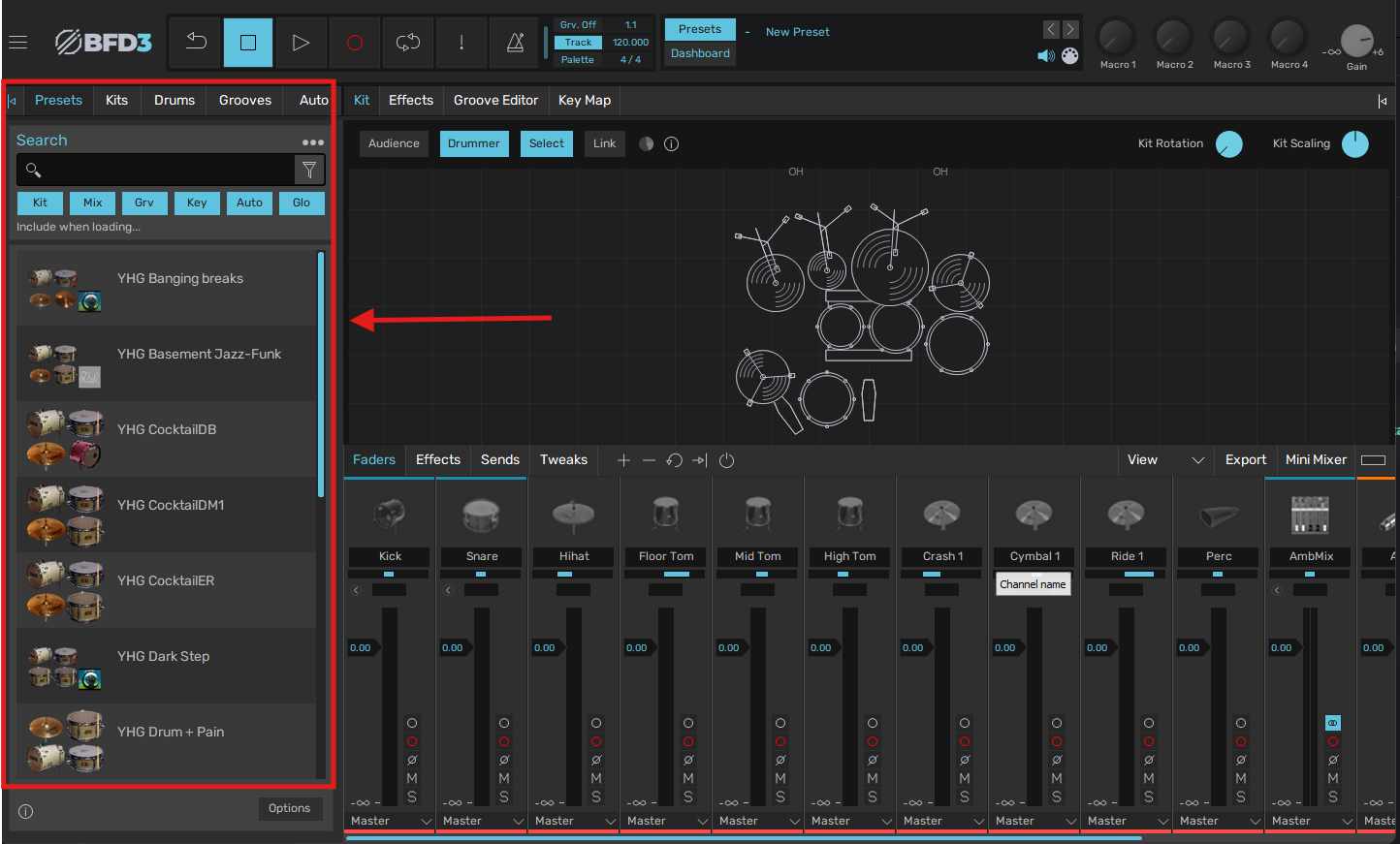
- Double-click on your Preset, Kit, Drum, or Groove to load
Different Locations or External Drives
If your content is not stored in the default location, you can manually load it from a different drive.
Important Note - We recommend using an SSD for the best performance; If you must connect a drive externally, USB-C or Thunderbolt is suitable.
To load your content from a different location/drive:
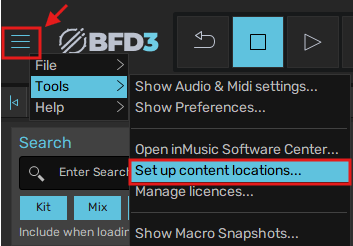
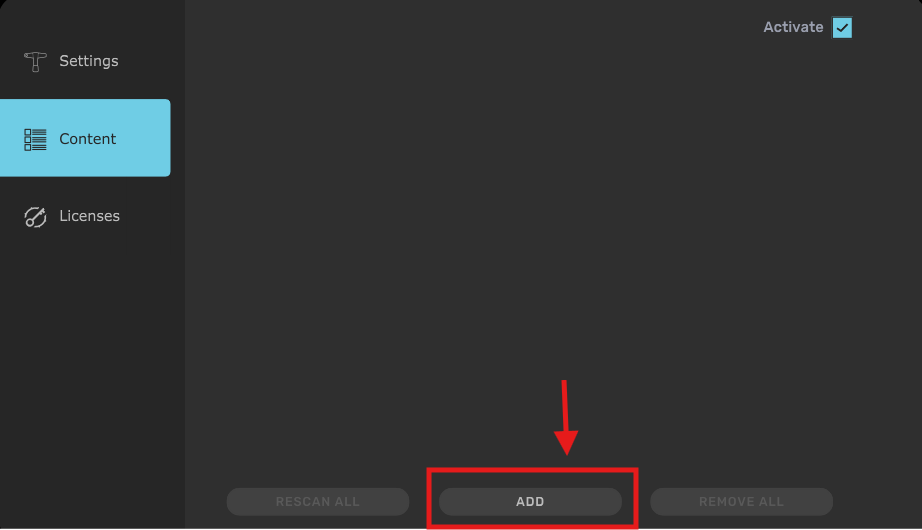
- Click the 3 lines icon on the top left of the window ☰ > Tools > Set up content locations...
- Click 'ADD'
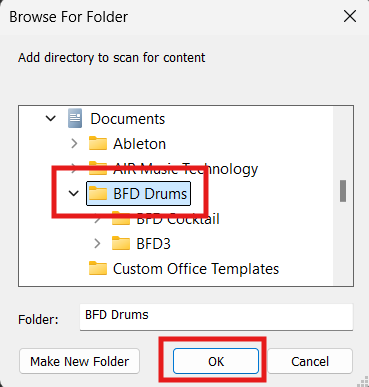
- Select your location and click 'OK'
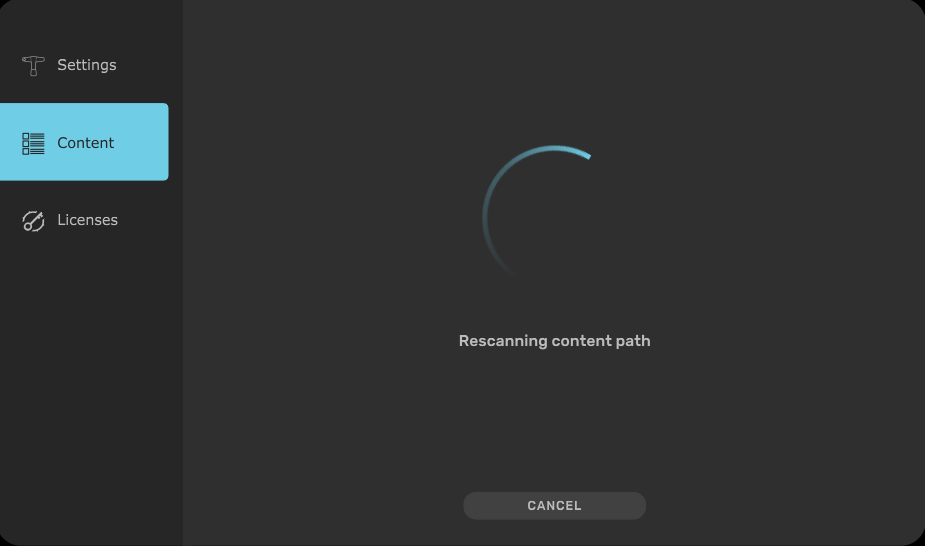
- Allow a few minutes for BFD 3.5 to rescan the content path
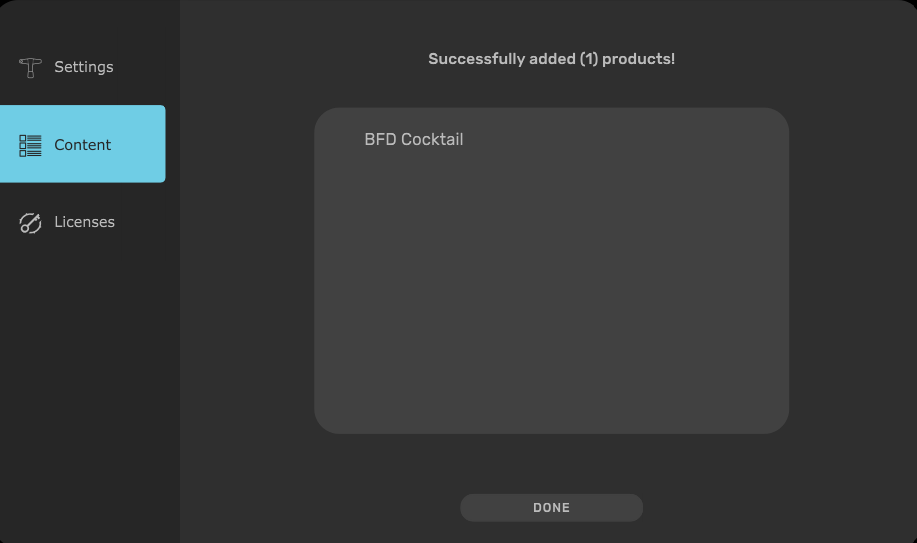
- Expansion successfully added! Click 'DONE'
FAQ / Troubleshooting
How much storage is required on my computer for download & installation?
Storage requirements can be found on the minimum system specifications on the product page for your specific expansion. File sizes vary depending on your choice of expansion.
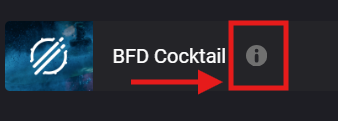
The inMusic Software Center will specify the size of the download by clicking the 'i' icon - See below:
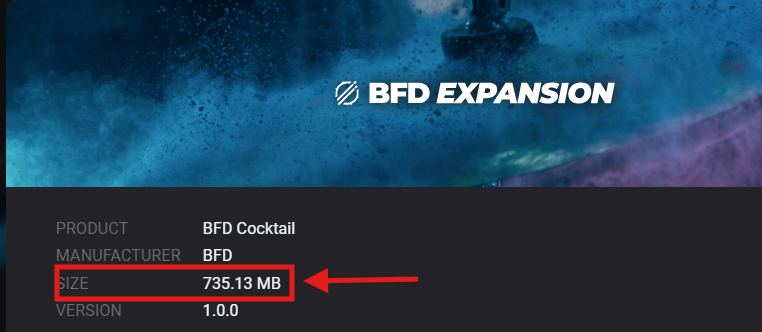
You'll require double this size for both download/installation. Once installation is complete, it is suitable to remove the installer from your drive, but removing the installed content will result in repeating the download/installation process.
I have limited storage on my machine. Can I download an expansion to an external drive?
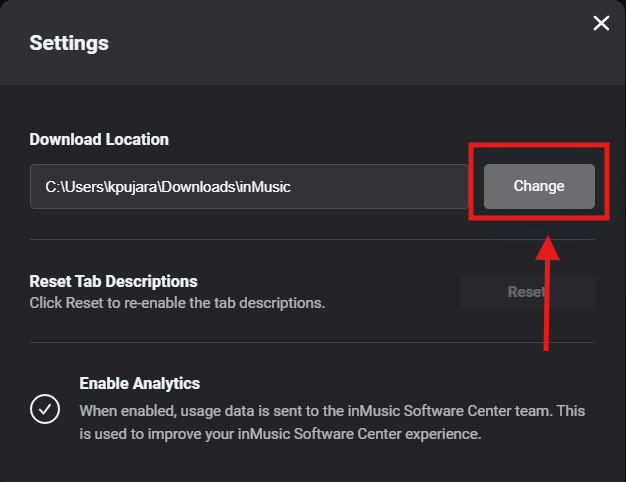
You certainly can! - To download your expansion to an external drive, please use the guide below to adjust your Download settings:
- Connect your external drive to your machine
- Navigate to the inMusic Software
- Click on your initials and then click 'Settings'

- Click 'Change' to specify a new download path
My expansions won't start downloading. What should I do?
- Make sure you're connected to a working and stable internet connection
- Permit inMusic Software Center within your firewall/security settings
- Subject to your choice of software anti-virus/firewall settings
Permit System Storage Access:
macOS:
- Click on the Apple icon in the top left corner of your screen.
- Select System Preferences.
- Go to Security & Privacy Preferences > Privacy and click Full Disk Access from the left panel.
- Tick the checkbox for inMusic Center. If the lock at the bottom is left locked, click it to unlock the Privacy pane.
- If you can’t locate the inMusic Center here, click the ‘+’ icon and select inMusic Software Center from the list of available applications.
Windows:
- Windows 10:
Go to Start > Settings > Privacy > File system > Allow Apps to Access your File System- On - Windows 11:
Go to Start > Settings > Privacy & Security > File system > File System Access - On and Let apps access your file system - On
If errors occur during the download. Please refer to our inMusic Software Center | Troubleshooting Download Errors support guide for additional troubleshooting.
My expansion pack is missing from the inMusic Software Center. What should I do?
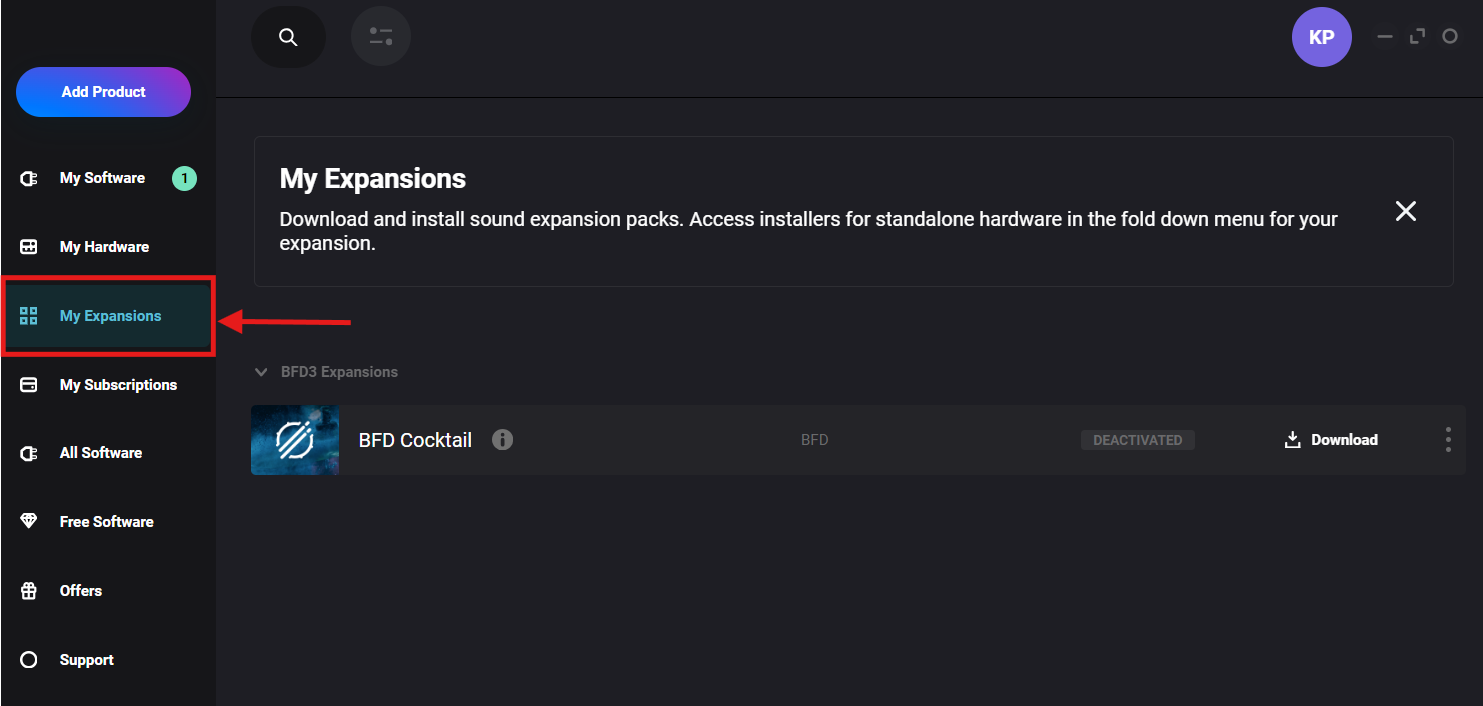
First, check and ensure you've selected the 'My Expansions' tab - All your expansions will be listed here:
Note, if you purchased these expansions some time ago via FXpansion, you'll need to migrate to your inMusic profile. See this guide to help you migrate: BFD Migration | Frequently Asked Questions
Ensuring the license remains in your inMusic profile will allow for seamless installation and activation via the inMusic Software Center.
You can double-check if the license is in your inMusic Profile by logging into your inMusic Profile Account and viewing your registered products HERE
If you purchased your BFD3 Expansion from a different email address than your inMusic Profile, please contact our support team by submitting a new ticket. Our friendly team will happily assist with migrating your license between accounts.
Why do I have Yellow Triangles on my presets or Kits?
If you're seeing yellow triangles, ensure your content has properly loaded and that the BFD3 Core Library has been installed from the inMusic Software Center. Your expansion preset may contain voices from the core library to complete a kit.
Please use the BFD3 | Troubleshooting Content Issues article for more in-depth troubleshooting steps.
I used the BFD License Manager before. Why do I need to use the inMusic Software Center now?
This update provides GUI changes as well as improvements to authorization and the management of user content; we strongly recommend our users update for the best experience with BFD3 and your content.